 AIFACECRAFT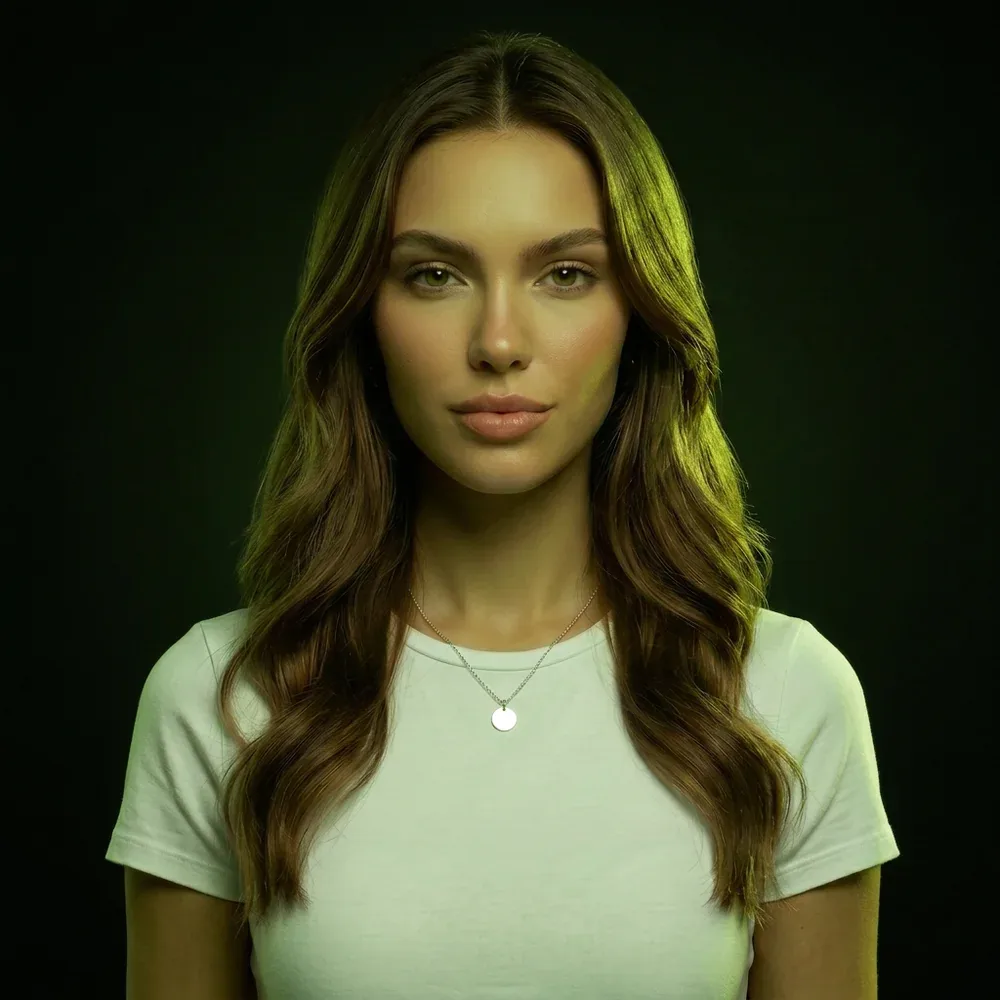
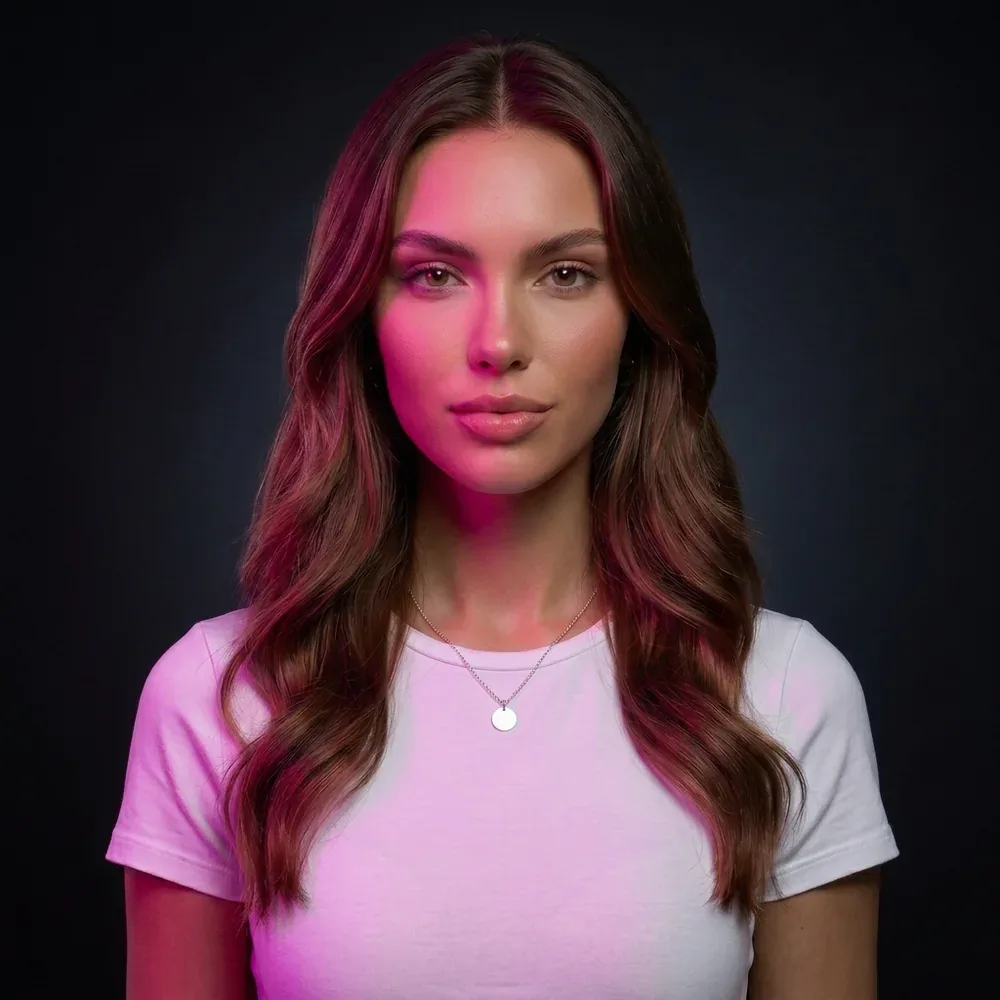
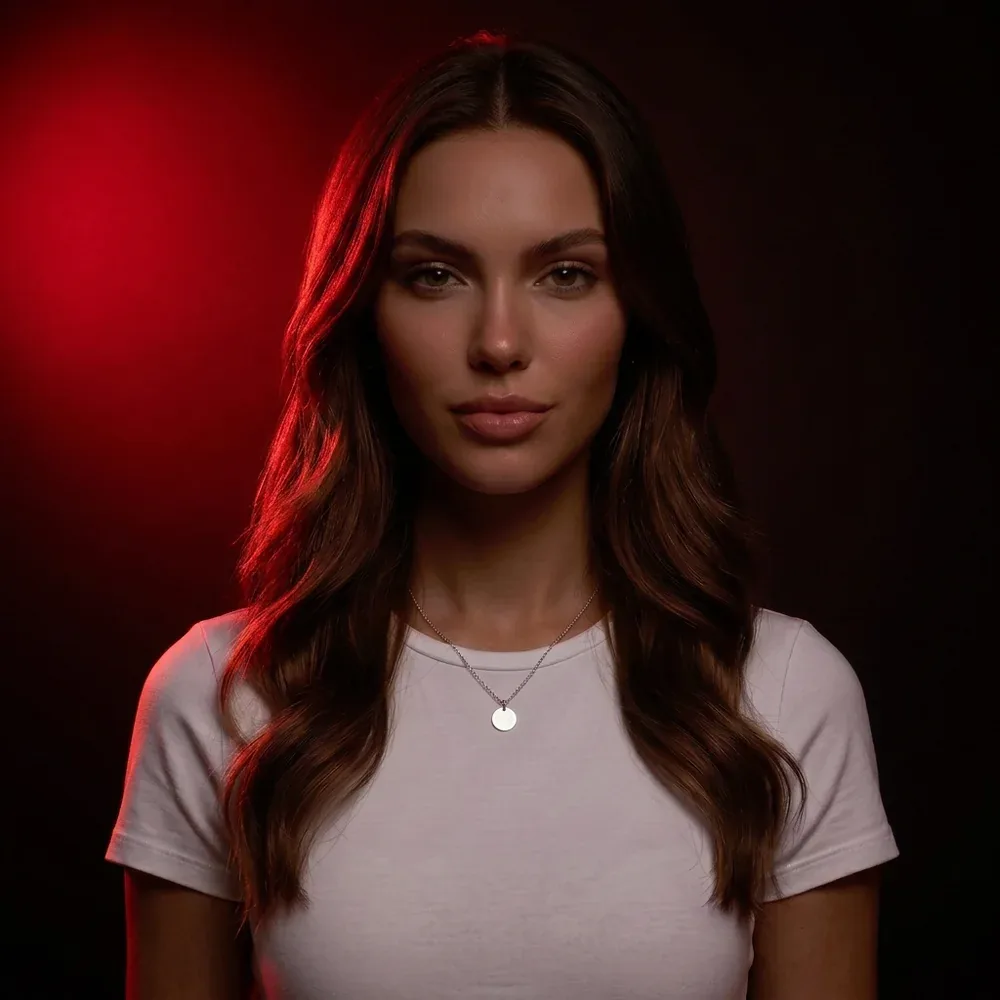
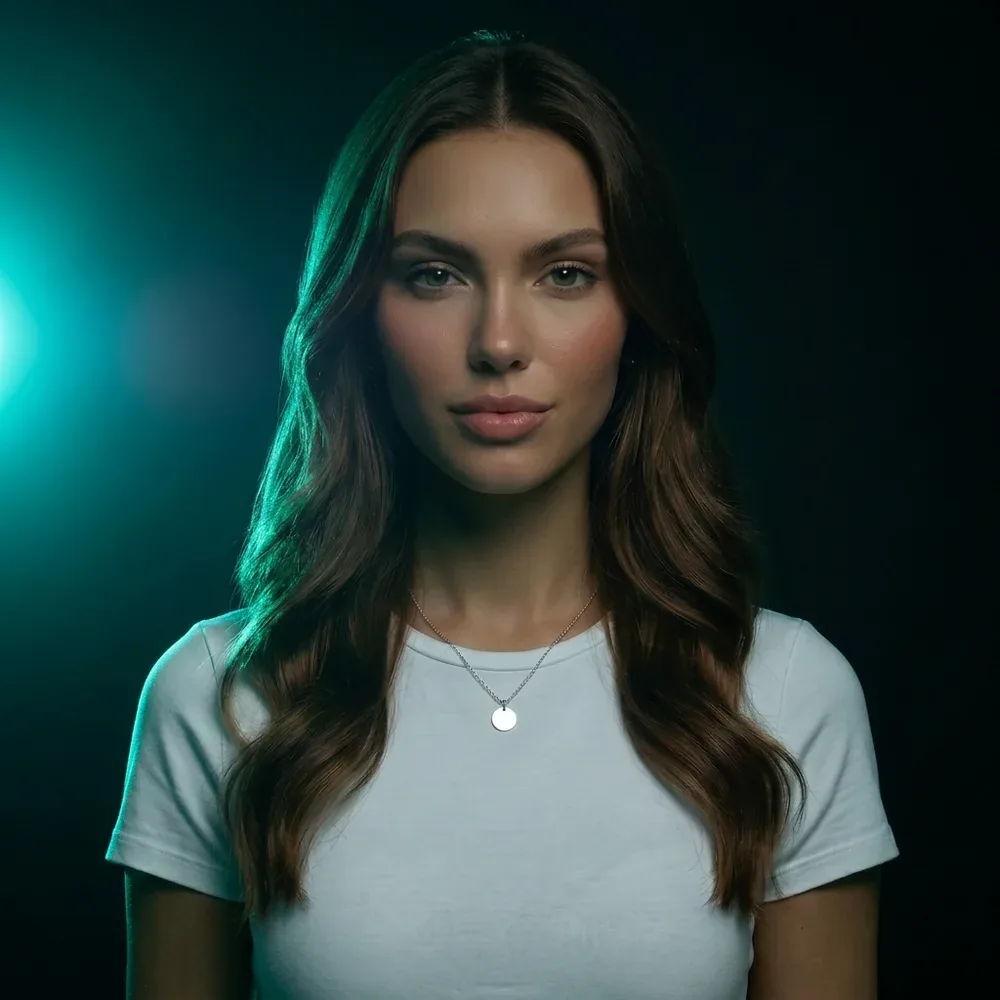
Start with one clear decision.
Use a sharp portrait. Keep the scene, choose a soft shadow edge and move the key light to one side. Review that single change before trying a gel colour or a darker setting.
What to Look For
Compare the eyes, skin, hairline, clothing edges and background with the original. A convincing lighting effect is only useful if the important details still work.
Four lights on one portrait.
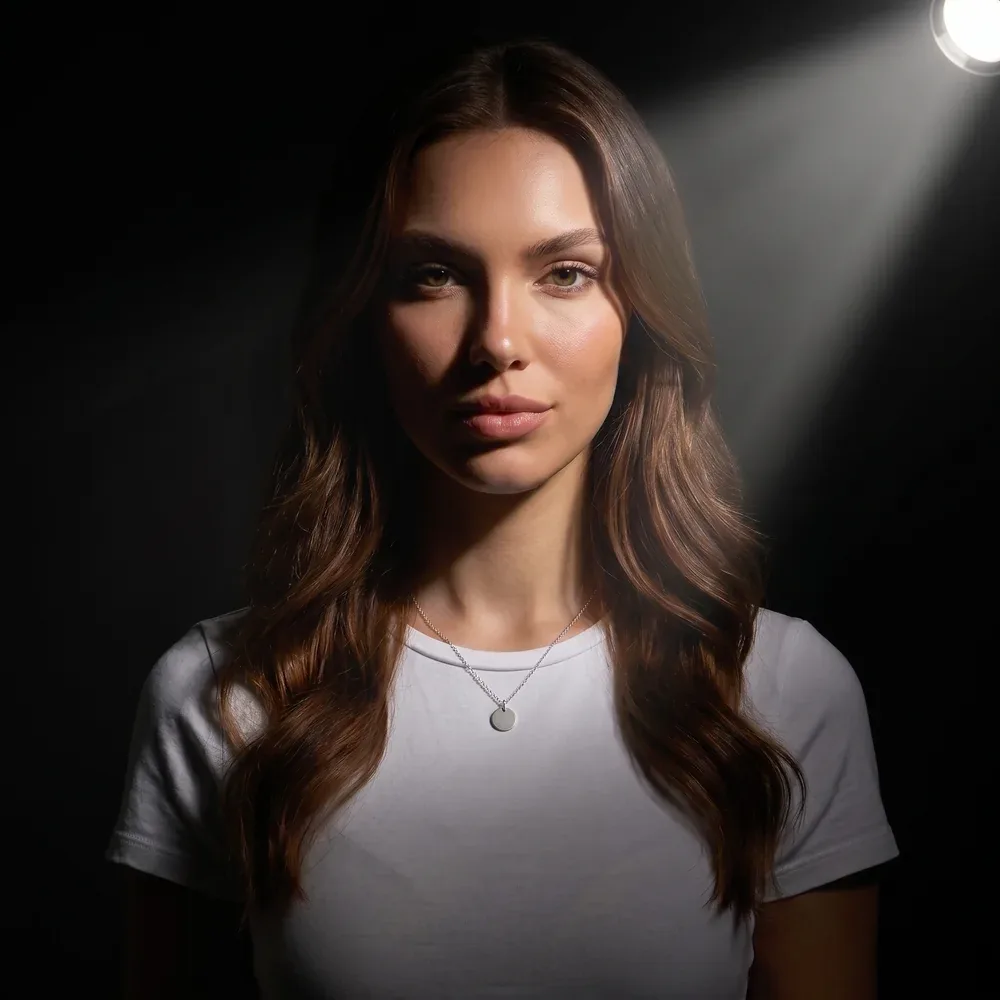
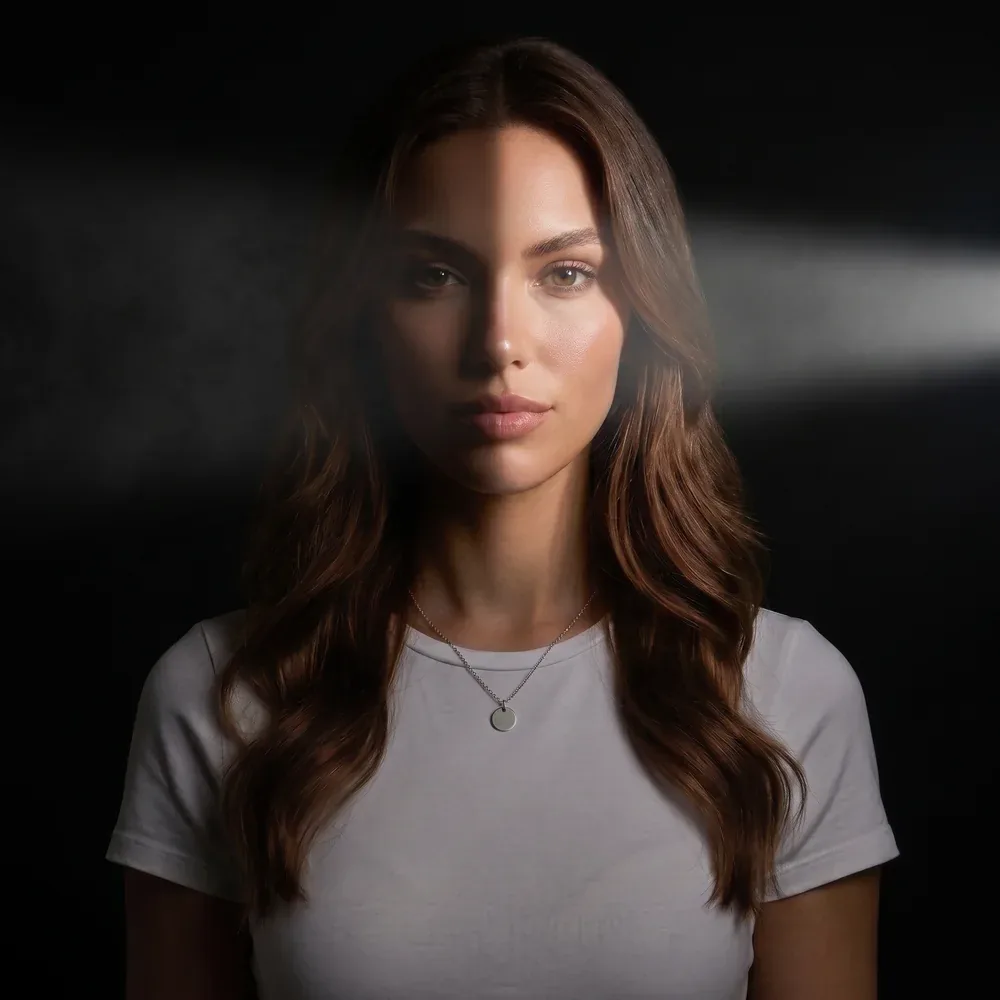
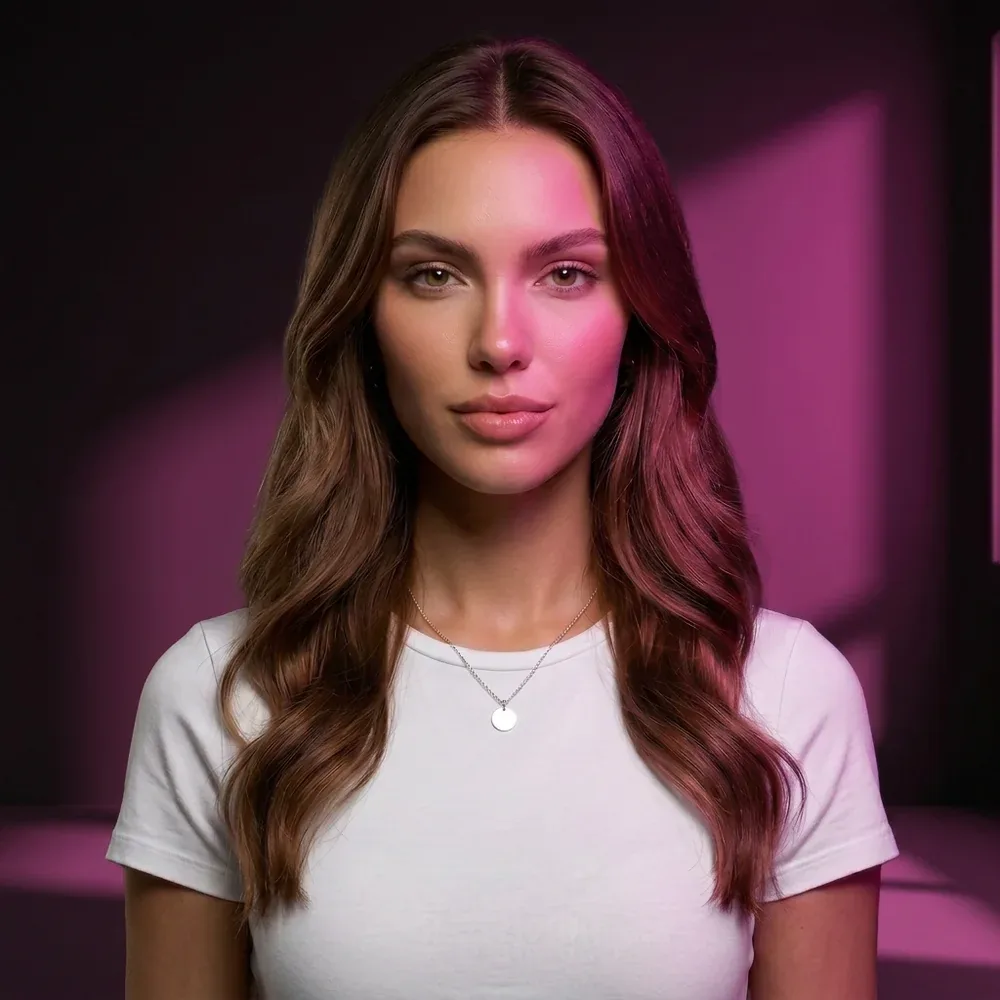
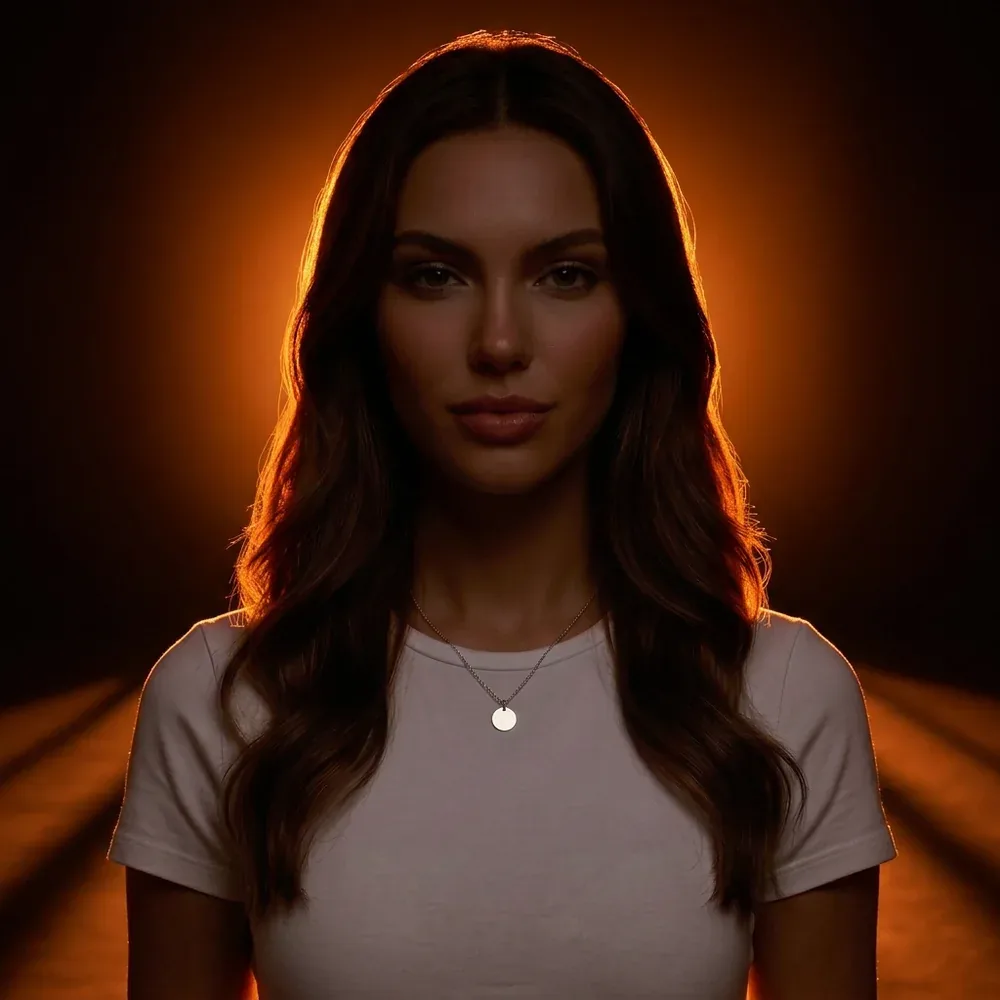
How It Works
- 01
Select a source portrait from uploads or saved references.
- 02
Set key-light direction, shadow edge, contrast, colour and scene treatment.
- 03
Choose an available output resolution and generate one new result.
- 04
Compare against the original, inspect details, then download, reuse or animate the selected result.
Inputs & Creative Controls
What You Bring
- One uploaded or saved portrait/reference image
What You Direct
- Key-light direction and elevation
- Soft / Medium / Hard shadow edge
- Even / Gentle / Dramatic / Extreme key-to-fill contrast
- Scene colour / colour temperature / gel colour
- Keep scene / Dark studio
- 1K, 2K or 4K output, depending on your plan
- Reset, before/after comparison, history, reuse, download and send to Video
Three Ways to Put It to Work
- 01
Compare soft frontal lighting with a more dramatic side-lit portrait.
- 02
Explore warm versus cool lighting for an existing campaign frame.
- 03
Prepare a dark-studio variation of a portrait before choosing a frame to animate.
What to Know Before You Start
- One source and one output per run; no model picker in this workflow.
- Your photo is matched to the closest supported aspect ratio; custom dimensions aren’t available.
- Lighting controls express generative direction, not physically calibrated relighting.
- Face, clothing and background details can change. Dark Studio also changes the background.
- Before/after comparison needs the original image to still be available.
Studio access, sign-in and credits may be required. Review the settings and the credit estimate before you generate.
A few useful answers.
Will everything except the light stay identical?
No. Relight generates a new result, so face, clothing and background details can change. Compare the original and result before using it.
Should I change the scene at the same time?
For a first comparison, keep the scene and change one lighting choice. Choose Dark Studio only when a different background treatment is part of your brief.

Bring your direction into Studio.
One portrait you have permission to use. Review the available settings and the credit estimate before you generate.
About This Guide
Based on the controls and workflows in AIFACECRAFT Studio, updated . The use cases show practical ways to work with them. Available settings depend on your account and plan; Studio always shows the options you can use.
Read the Relight Documentation