 AIFACECRAFT

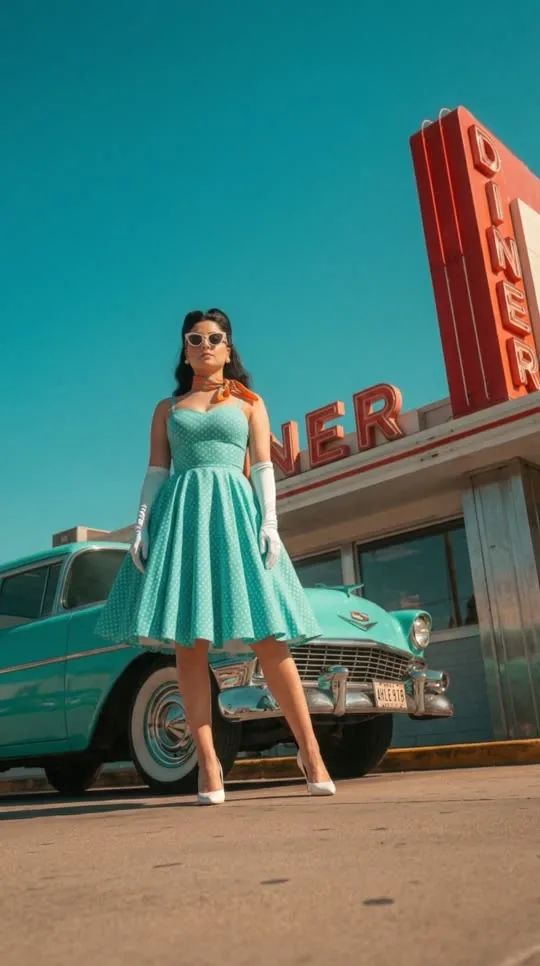
Start with one clear decision.
Begin with one subject and one action. If you already have an approved still, use a model that accepts a first frame. Describe the subject’s movement separately from the camera movement.
What to Look For
Watch the full clip, then inspect the opening, closing and any transition. Review sound where enabled, along with faces, hands and changing object shapes.
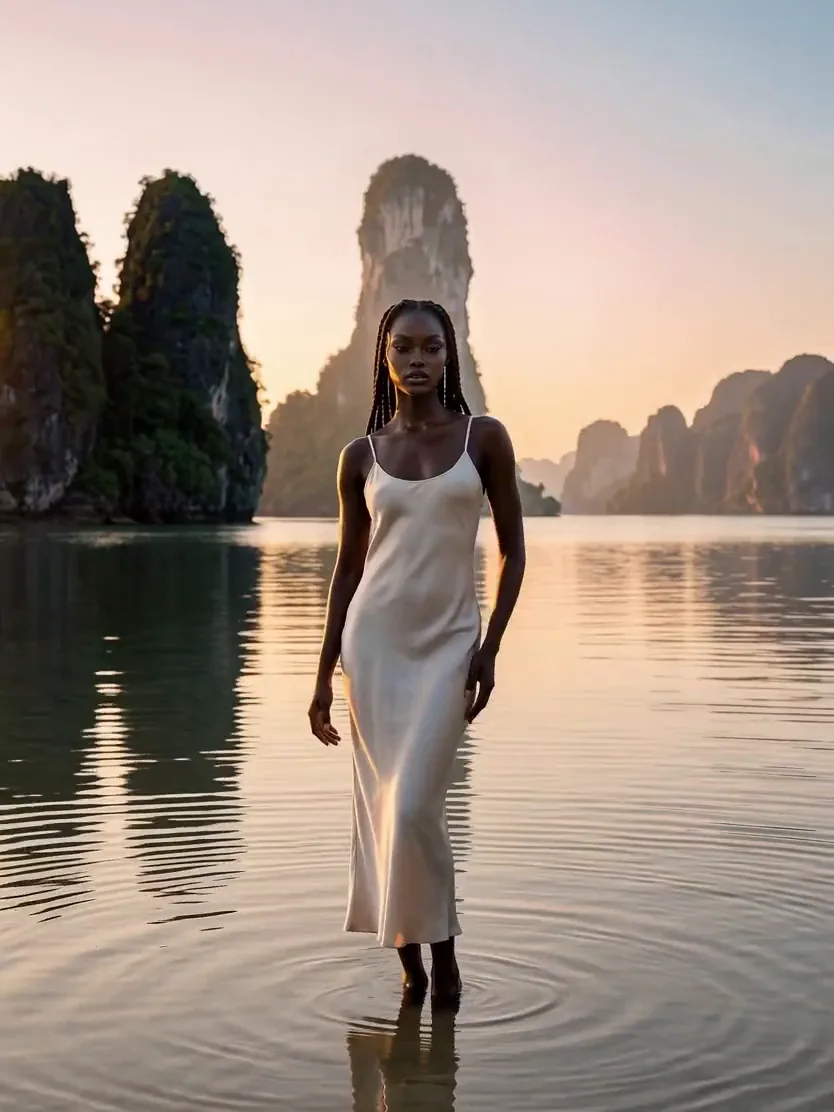
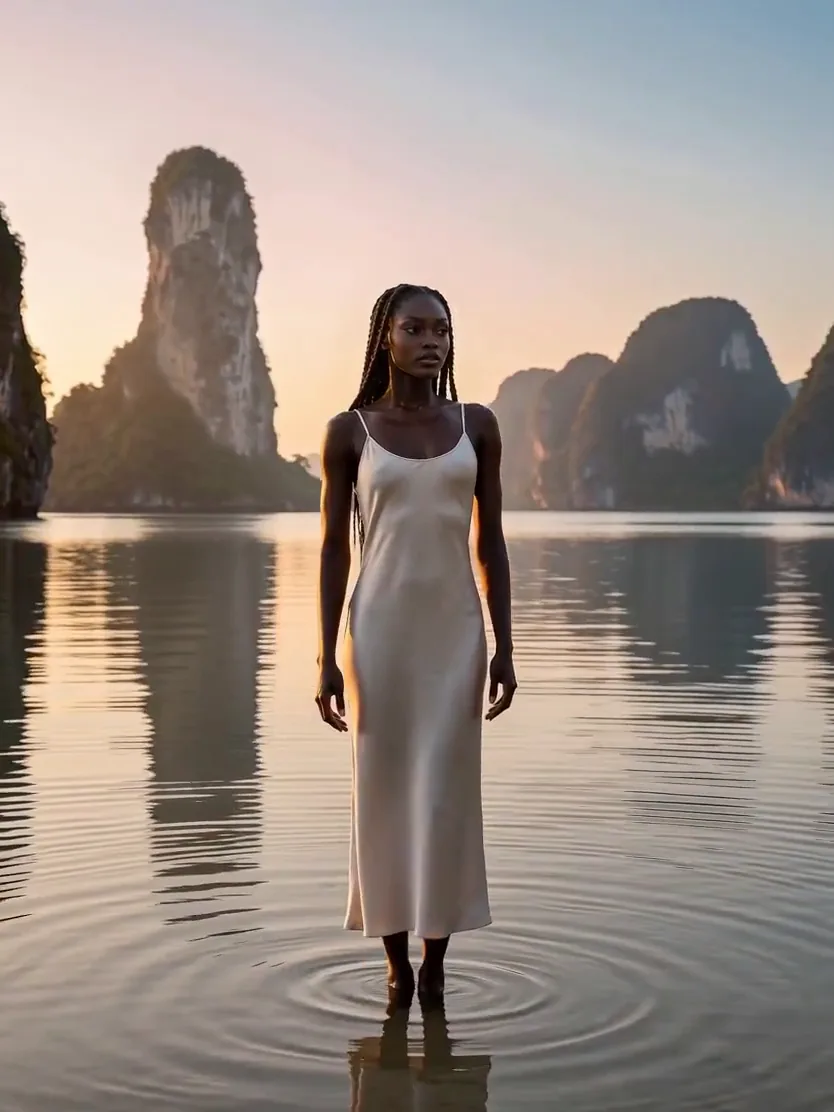
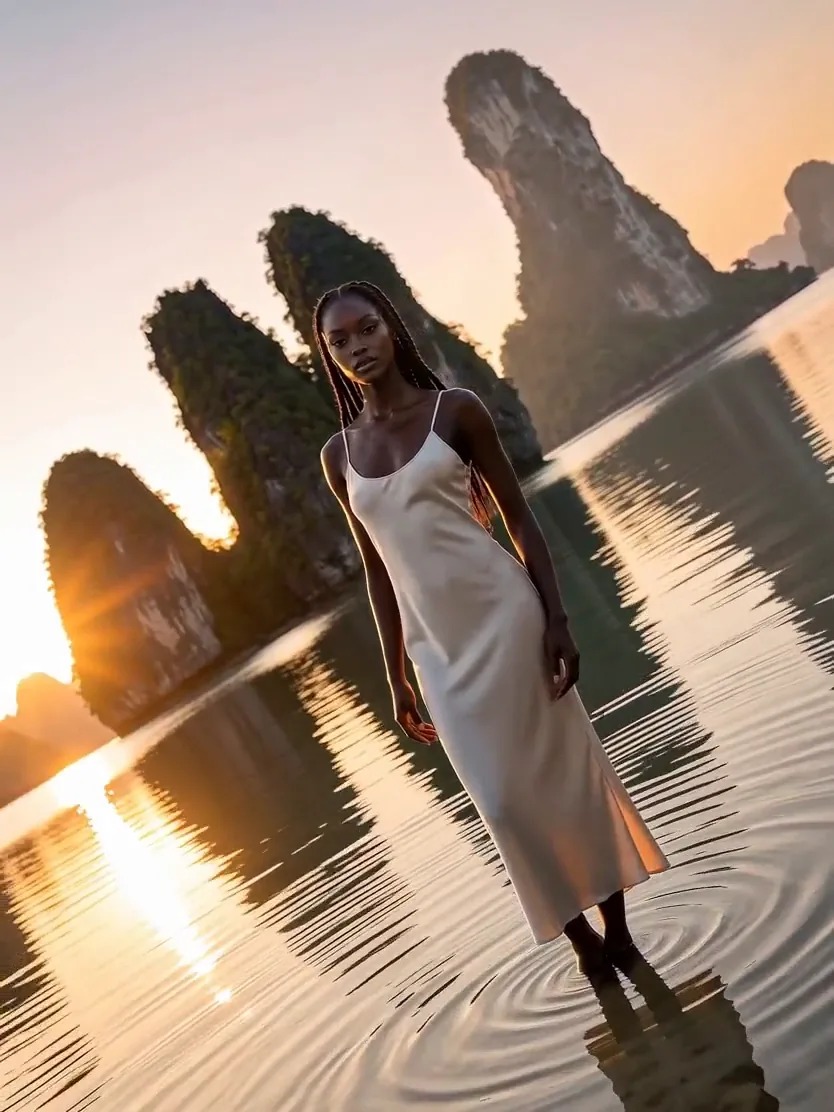
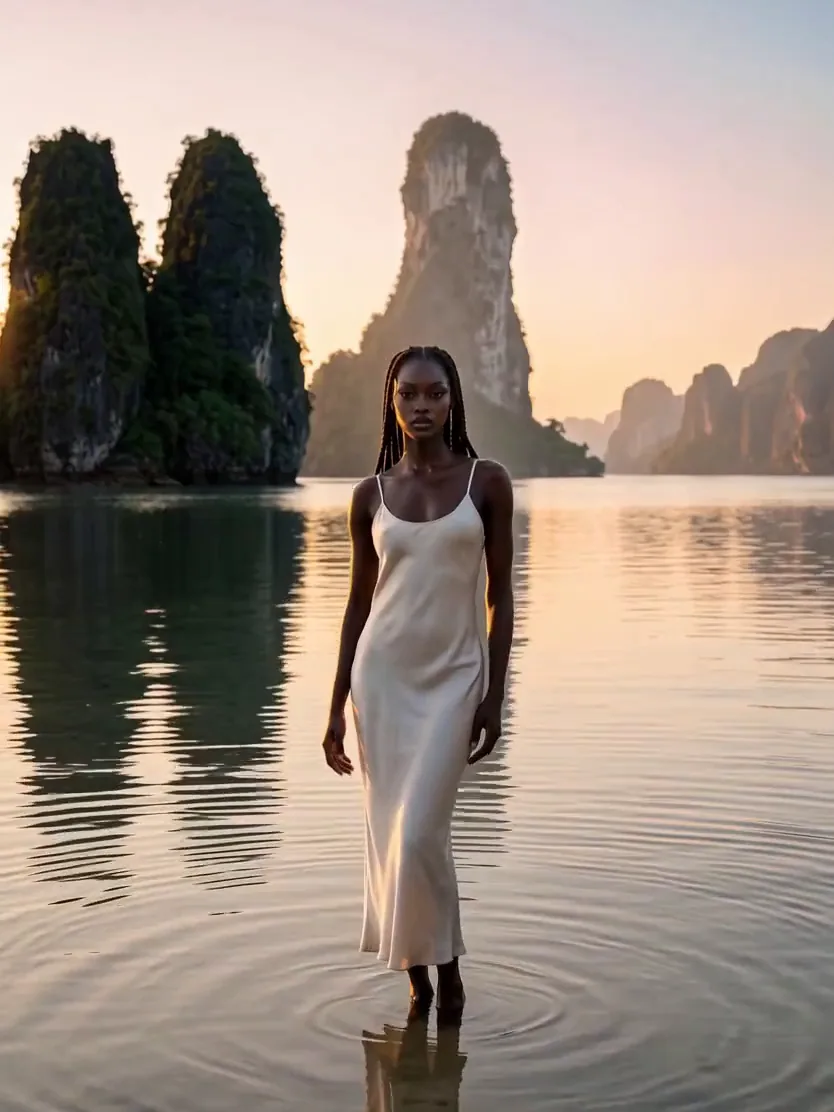
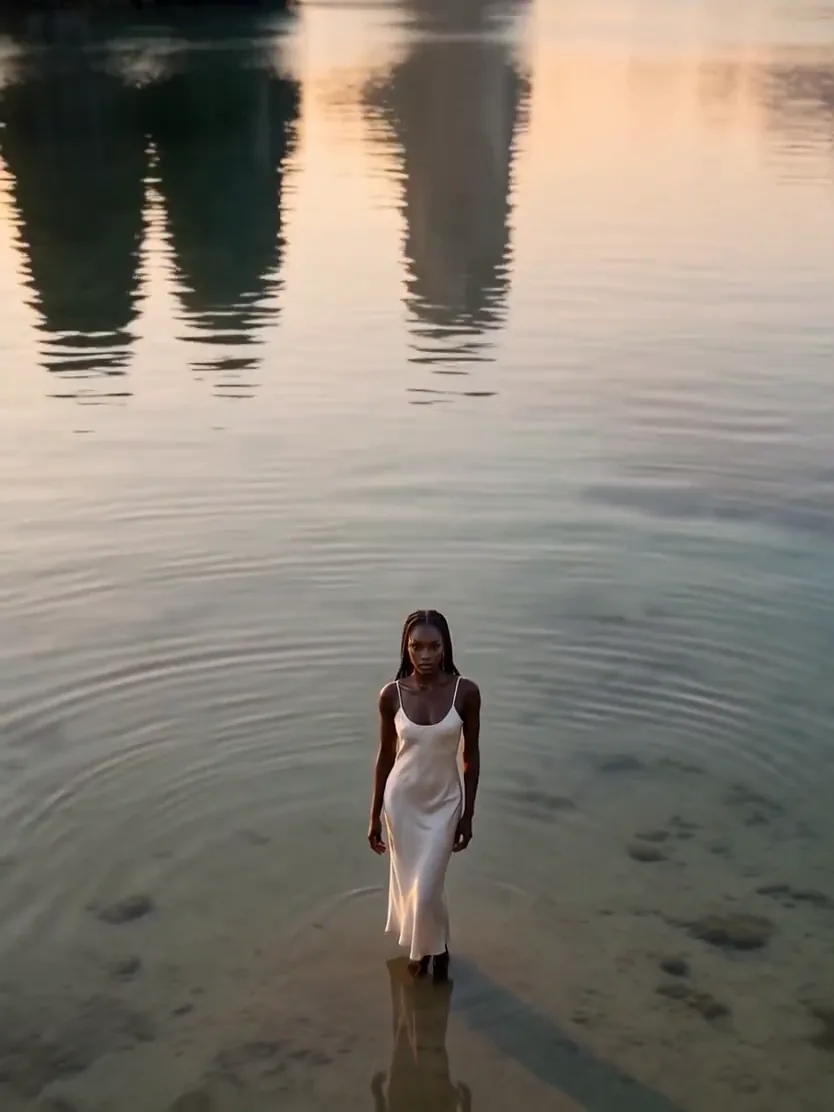
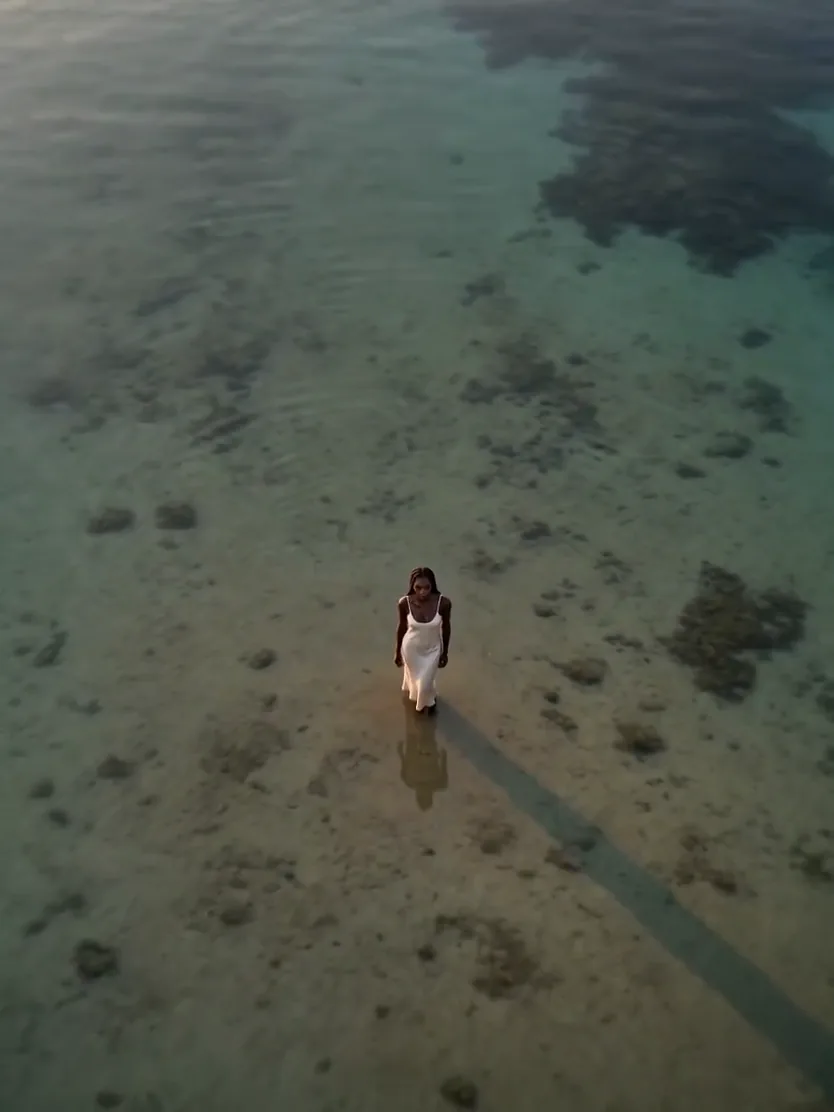
Camera Movements
Start, middle and end of each move, taken from the clips in the Video panel.
01Push In
Slow dolly toward the subject
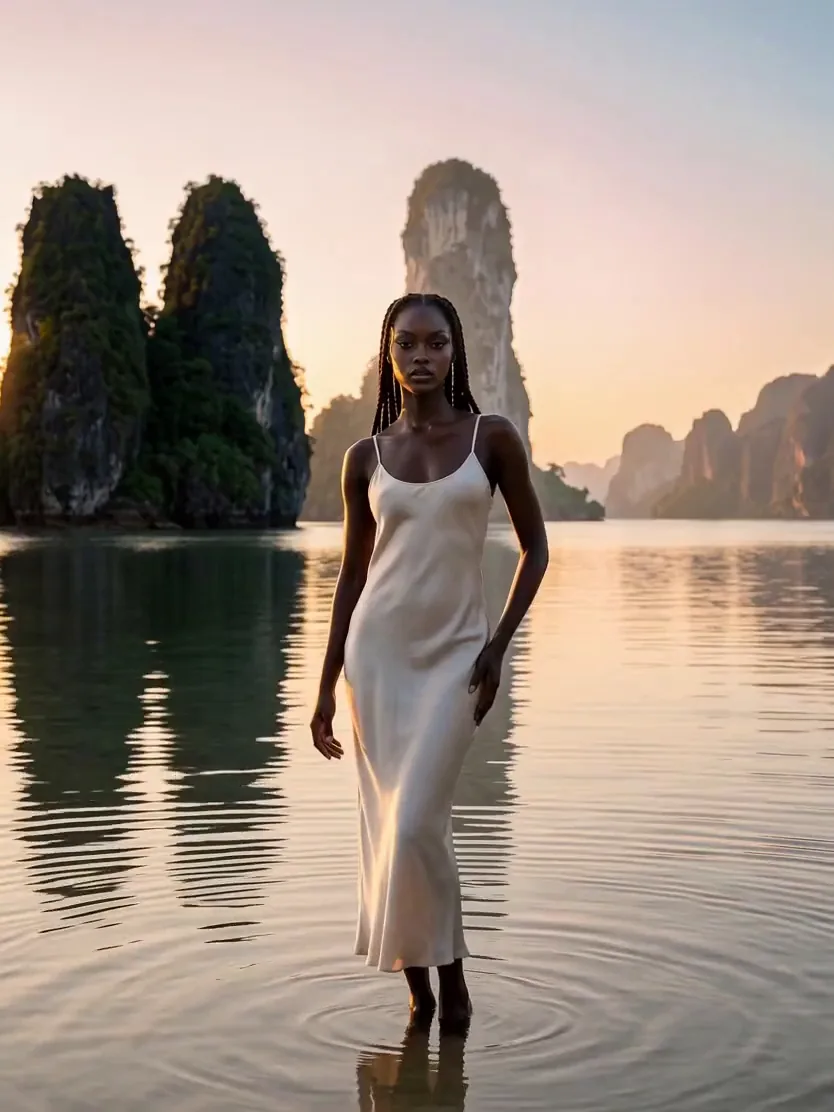
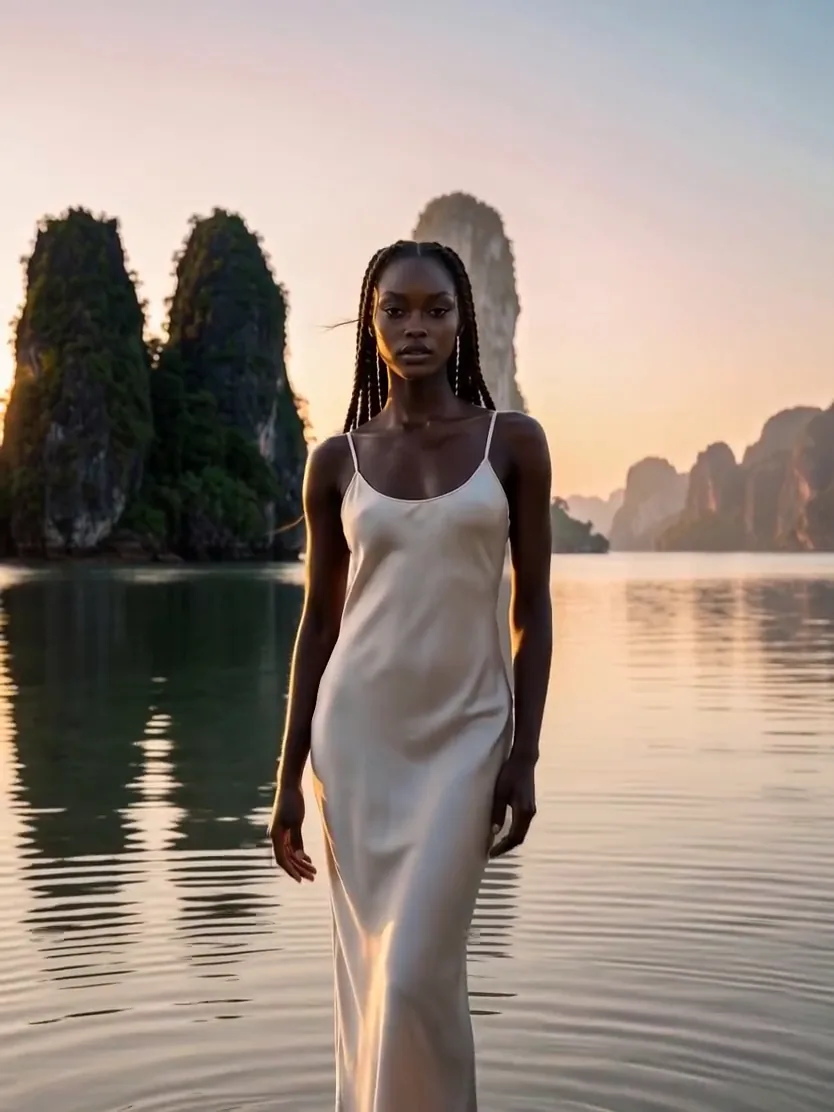
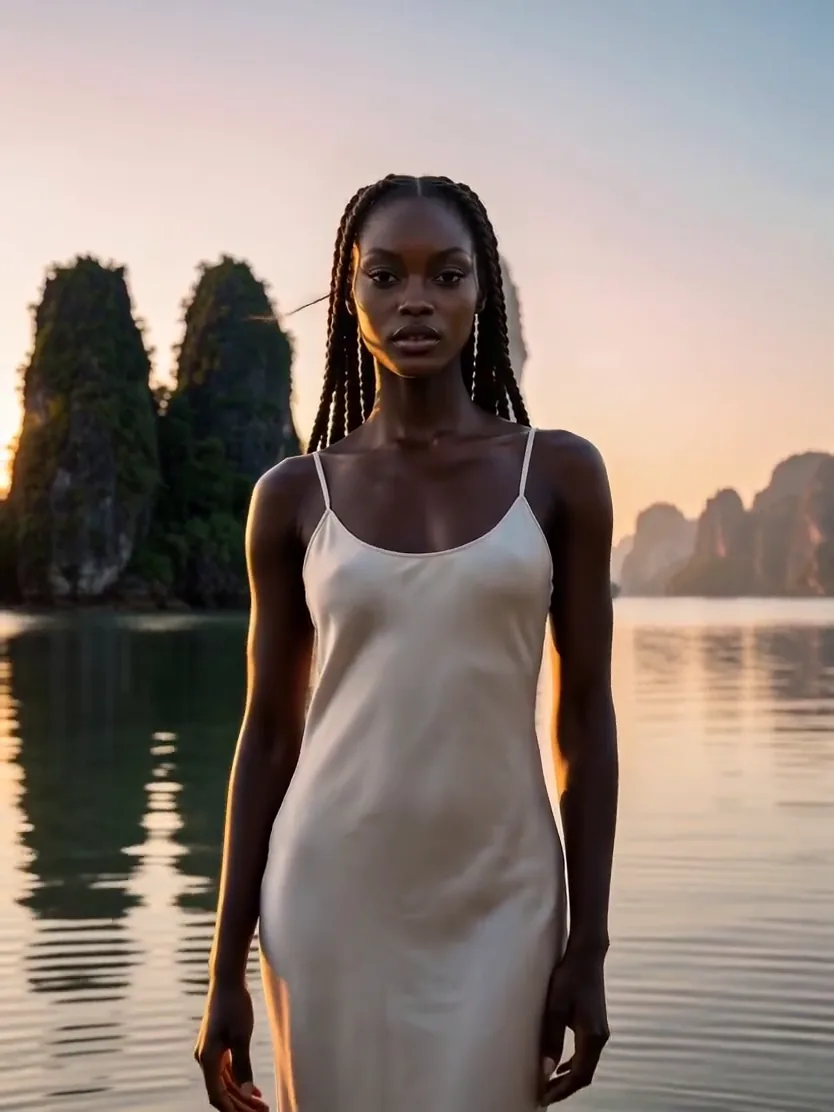
02Orbit
Arc around the subject
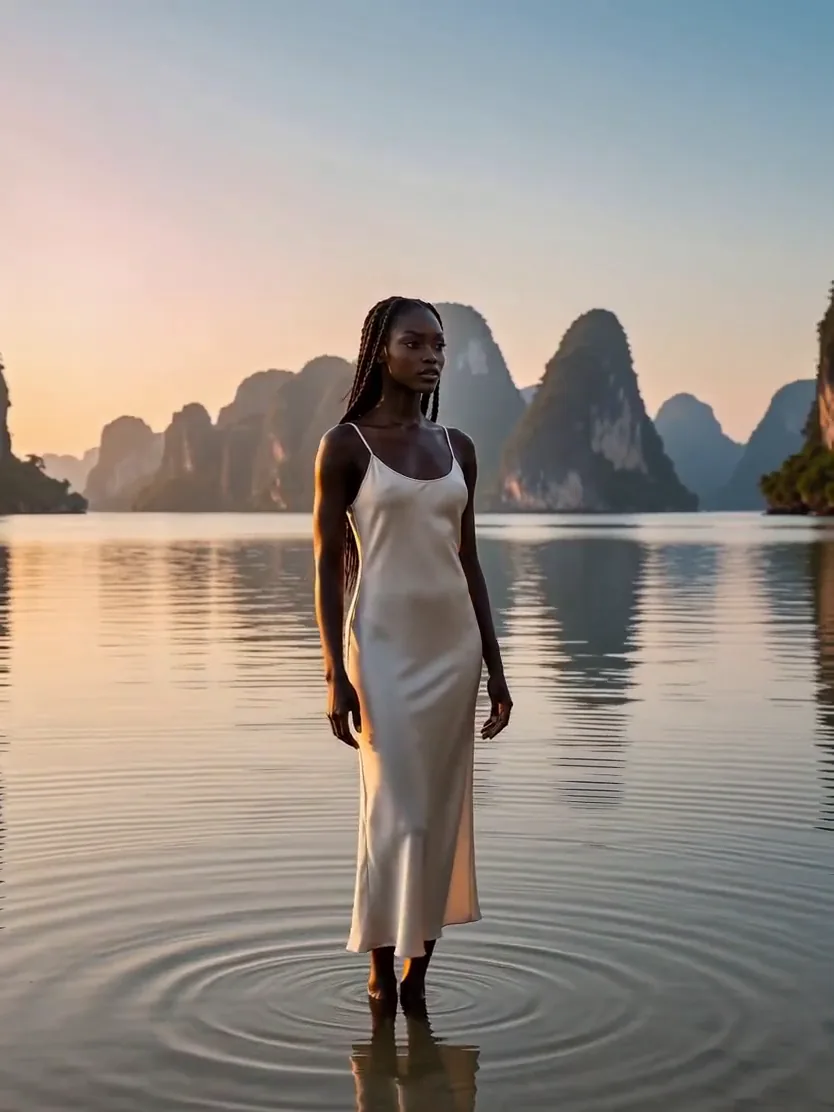
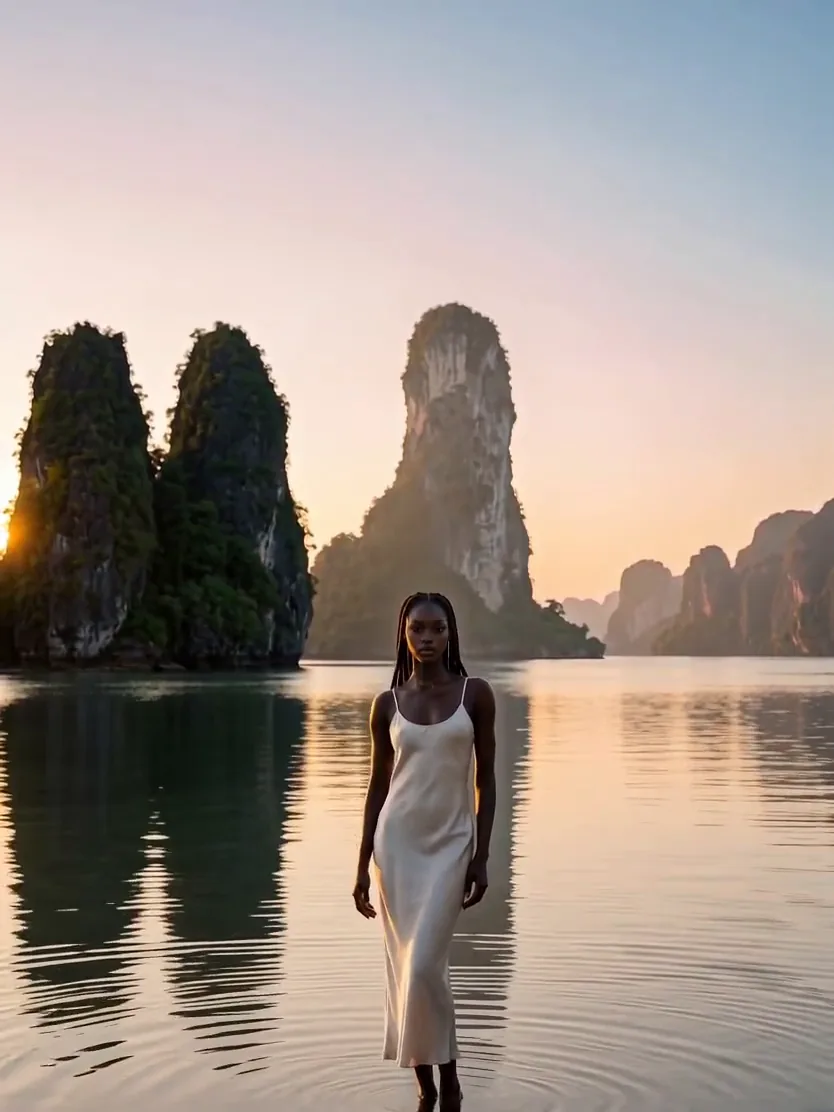
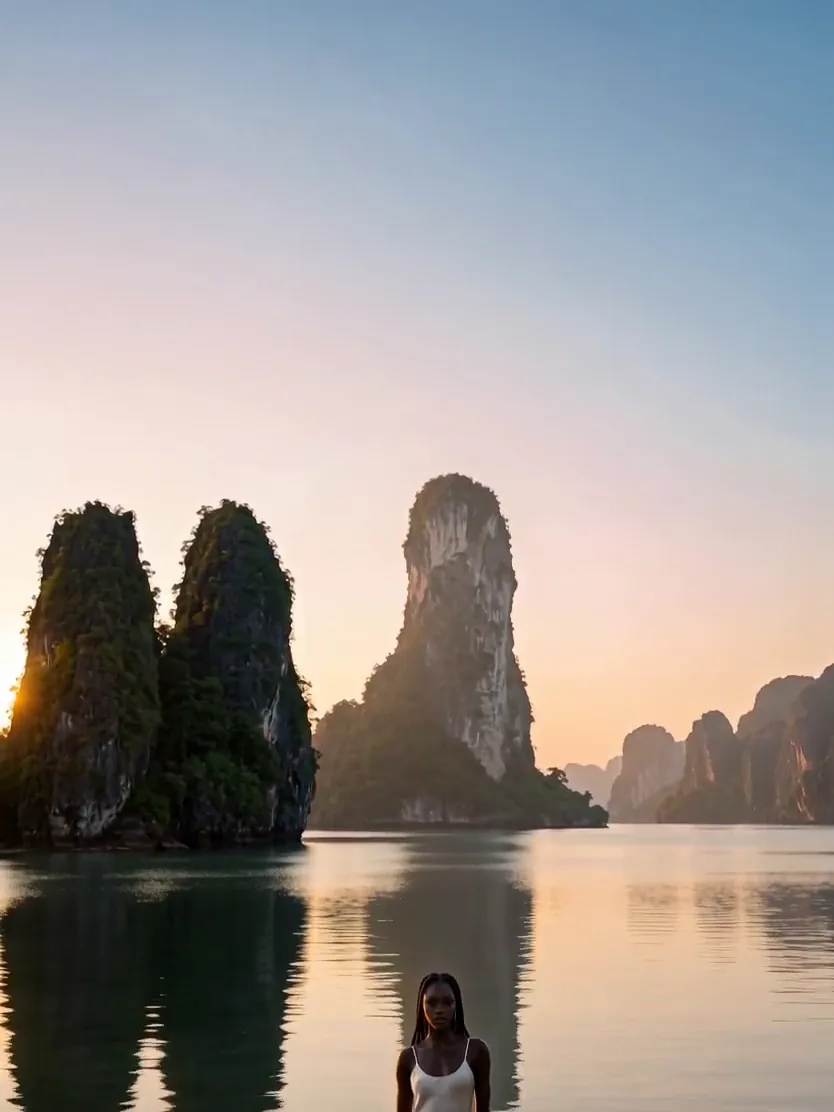
03Crane Up
Boom rises, the ground opens below
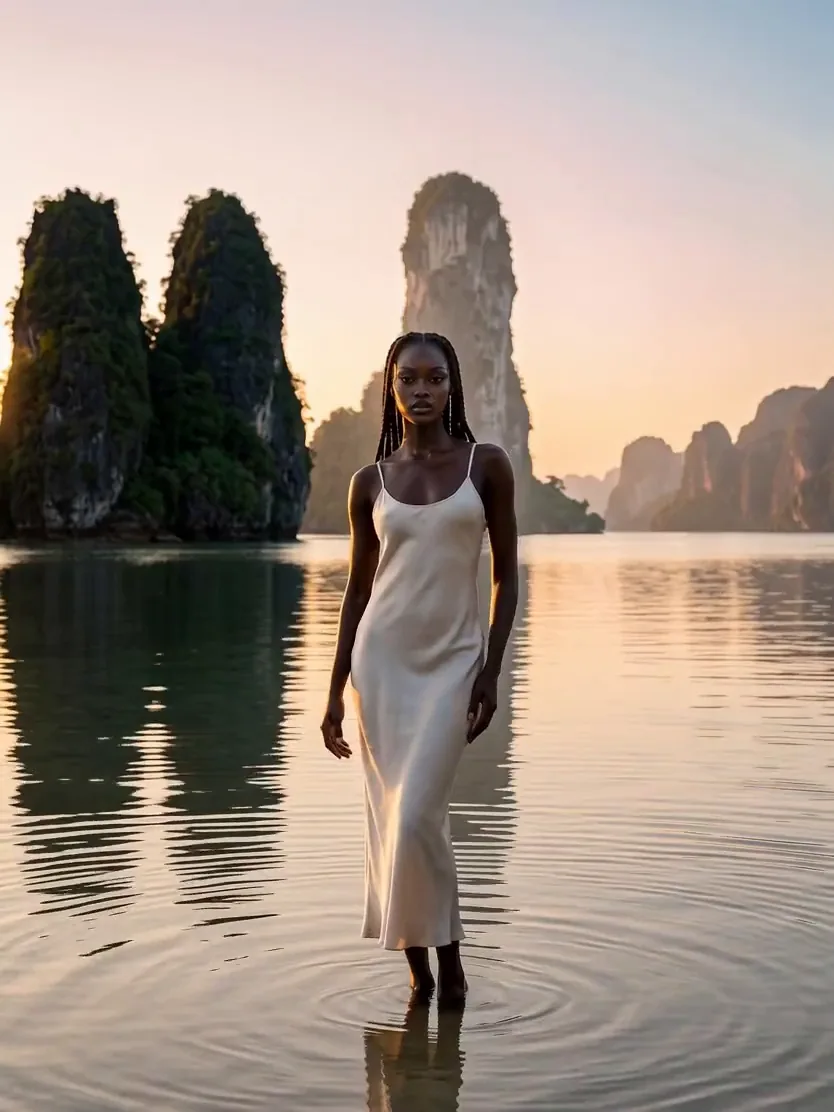
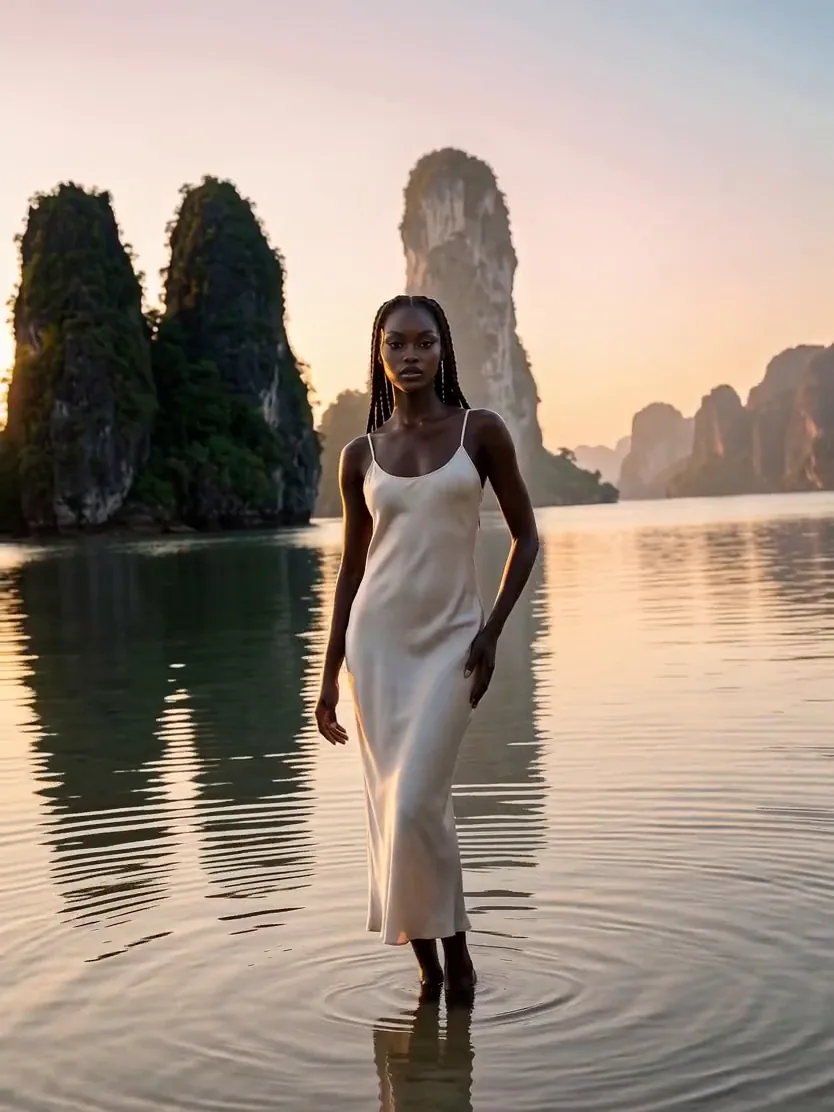
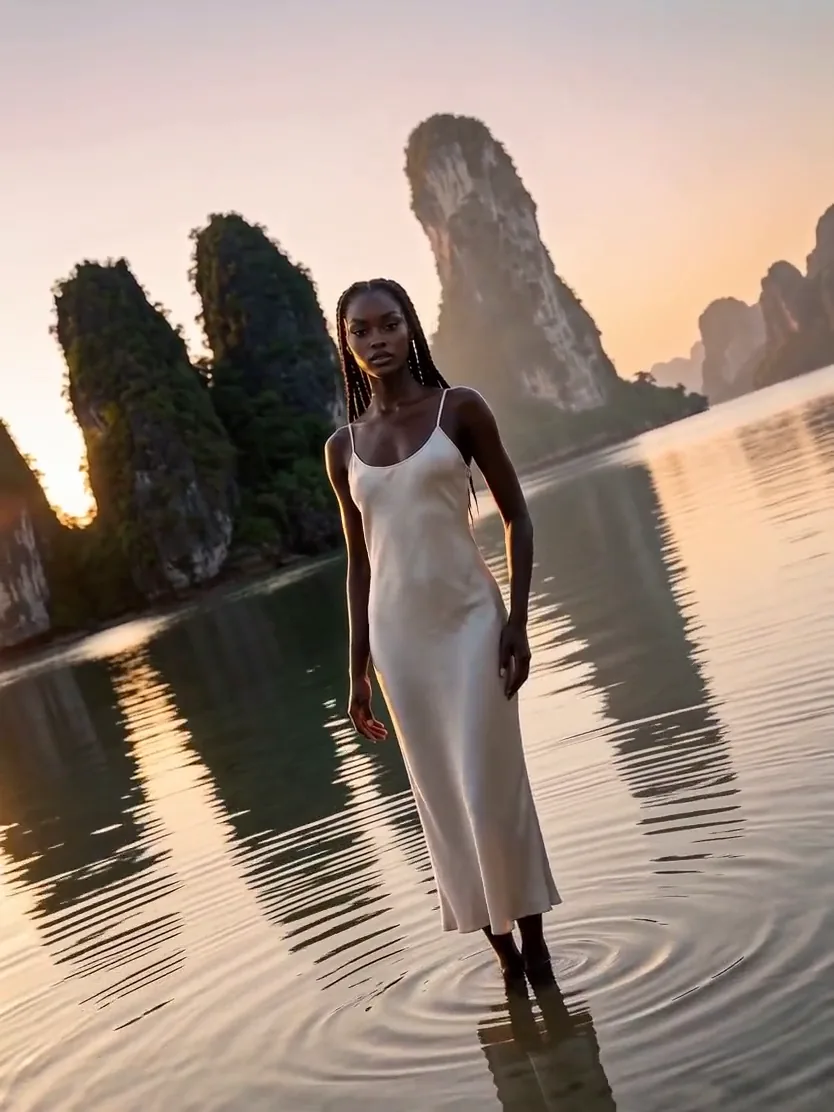
04Dutch Roll
Horizon tips off level
05Overhead
Climbs to a bird’s eye view
Availability depends on the selected model and workflow.
How It Works
- 01
Choose a model and a task.
- 02
Add the appropriate prompt, frames, references or source clip.
- 03
Set supported duration, format, camera direction and audio options.
- 04
Generate a clip, inspect it, then download or reuse its setup.
Inputs & Creative Controls
What You Bring
- Text prompt
- First frame and optional supported last frame
- Supported image/video references
- A source clip to edit, extend or use as a motion reference
What You Direct
- Model picker and task choice: create, edit or extend
- Frames or references, depending on the model
- Model-dependent duration, resolution, aspect and audio
- Camera move presets
- Prompt and reference mentions
- Saved setup, result preview, downloads and history
Three Ways to Put It to Work
- 01
Animate an approved portrait frame with deliberate camera direction.
- 02
Create a clip from a written scene or supported reference inputs.
- 03
Explore an edit or continuation of an existing clip with a model that offers editing or extension.
What to Know Before You Start
- Available modes and input limits depend on the model and the controls currently offered in AIFACECRAFT.
- Some models take either frames or references, not both; the number of inputs and source-clip length vary by model.
- Audio, editing and extension aren’t available on every model.
- Video creates individual clips; it doesn’t edit them into a film or guarantee frame-to-frame continuity.
Studio access, sign-in and credits may be required. Review the settings and the credit estimate before you generate.
A few useful answers.
Can every model edit or extend a clip?
No. Choose a model that offers the task you need, then use the inputs shown in its panel. A reference clip and a clip to edit are different inputs.
Will every video include sound?
Audio support and controls depend on the selected model and workflow. Check the audio choice before generating and review the soundtrack in the result.

Bring your direction into Studio.
A written scene, a frame or supported references. Review the available settings and the credit estimate before you generate.
About This Guide
Based on the controls and workflows in AIFACECRAFT Studio, updated . The use cases show practical ways to work with them. Available settings depend on your account and plan; Studio always shows the options you can use.
Read the Video Documentation