 AIFACECRAFT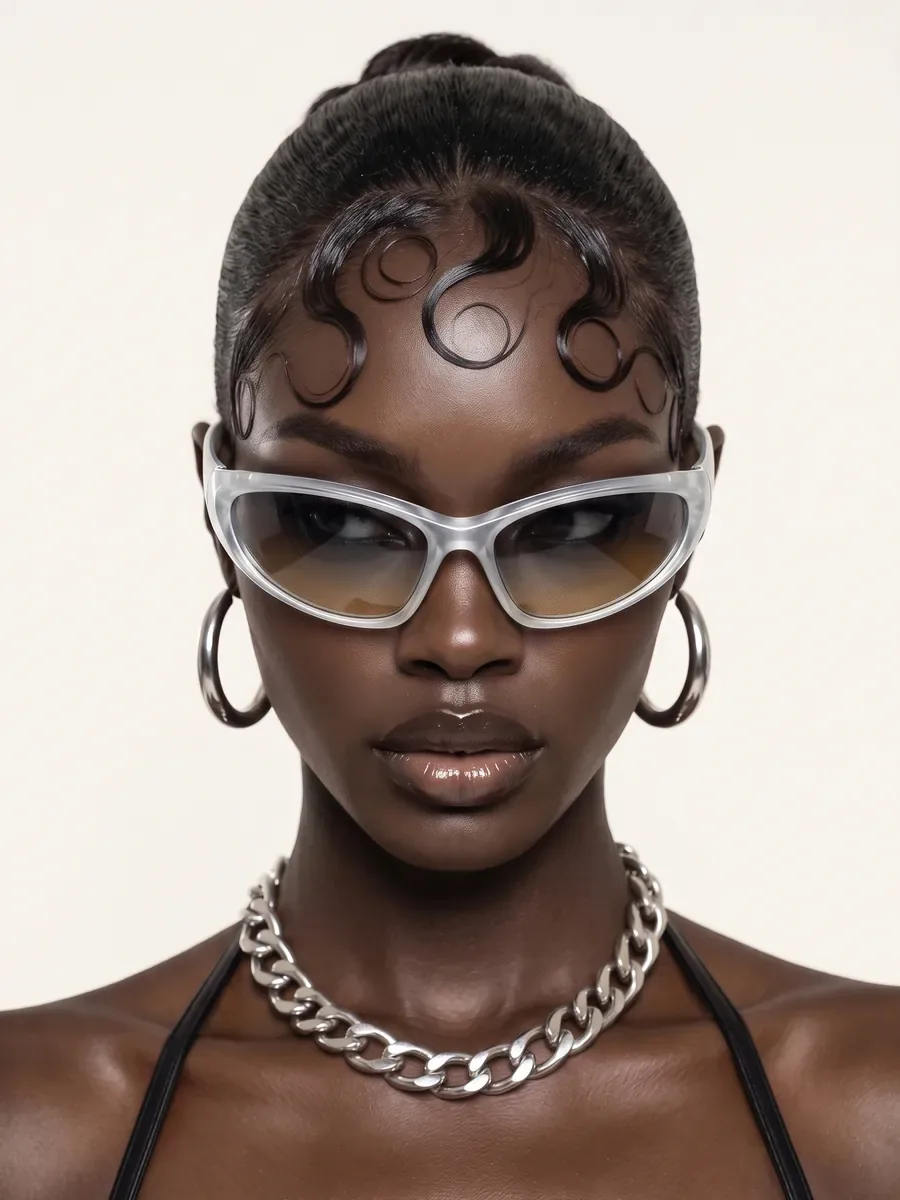
Start with one clear decision.
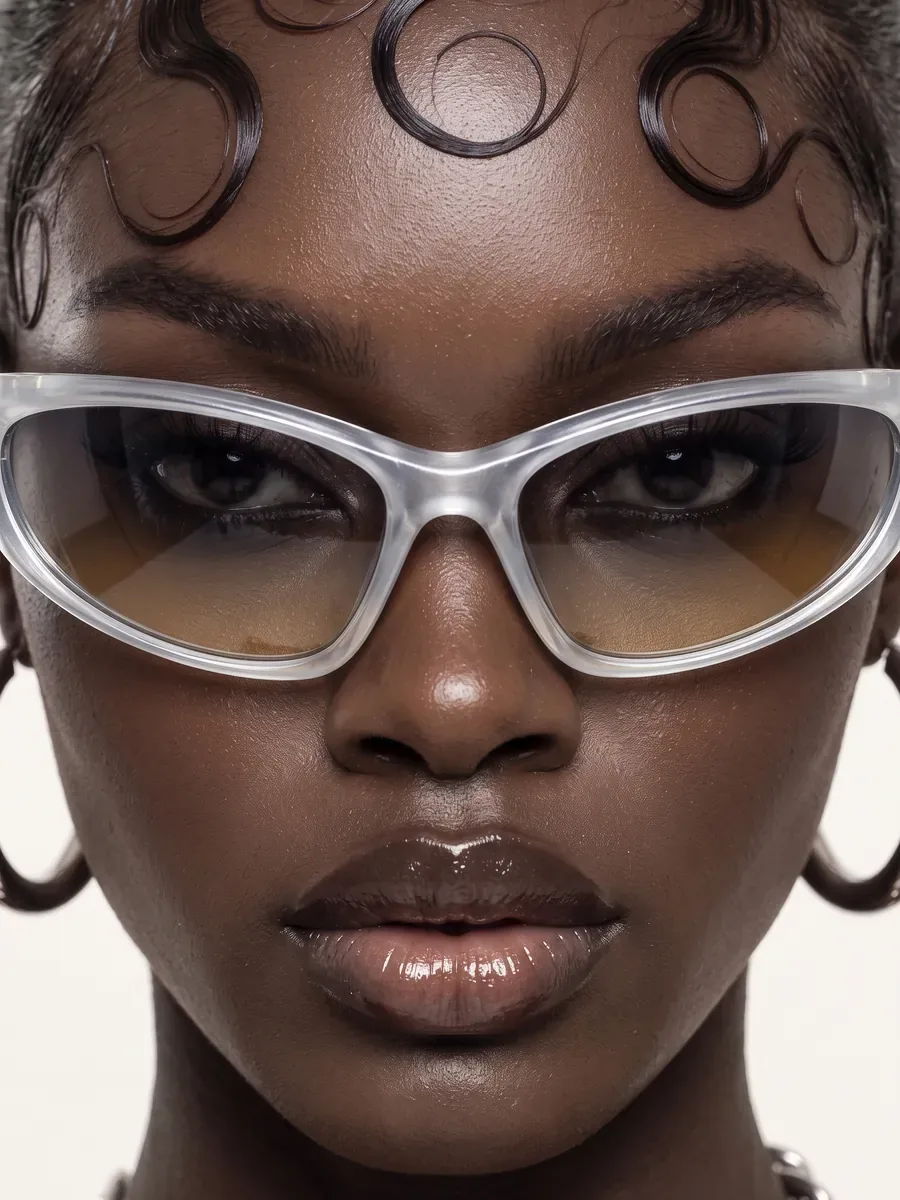
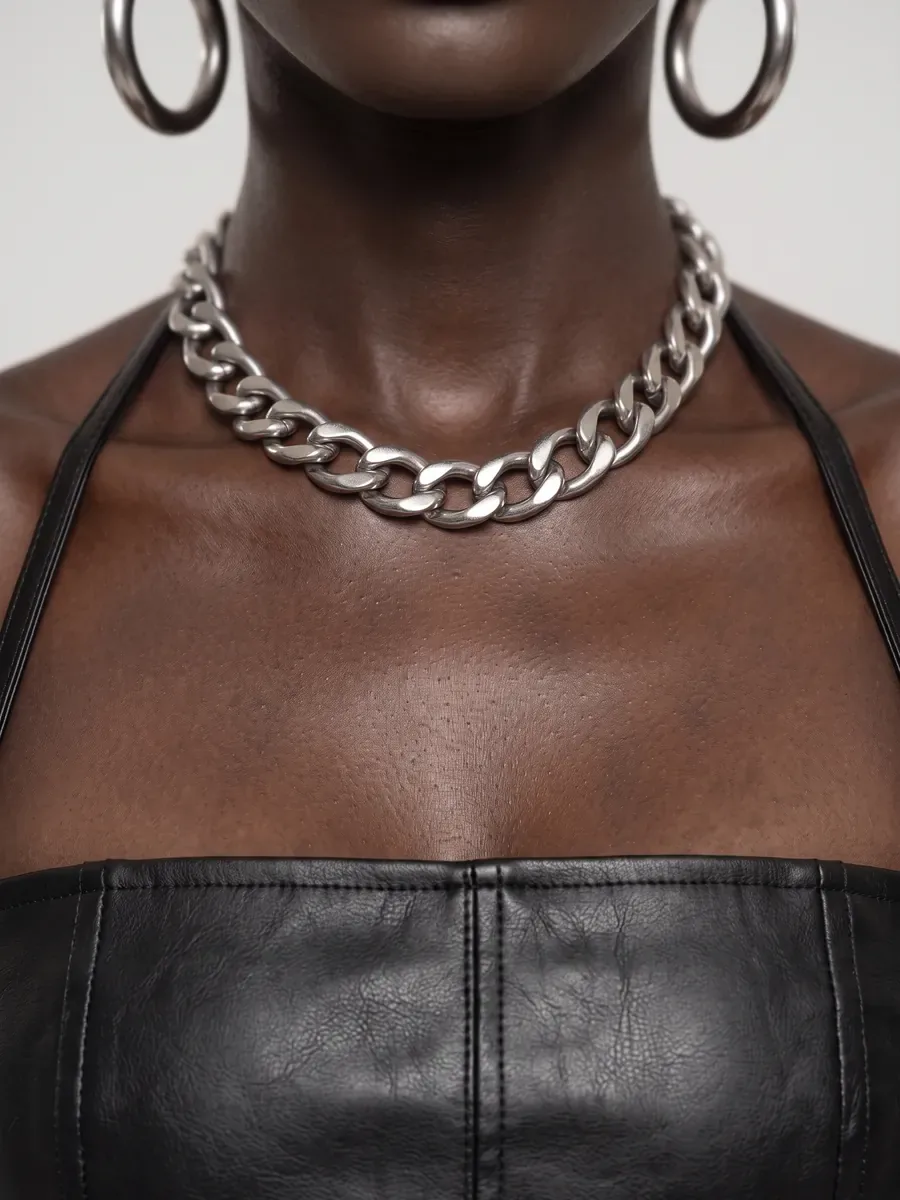
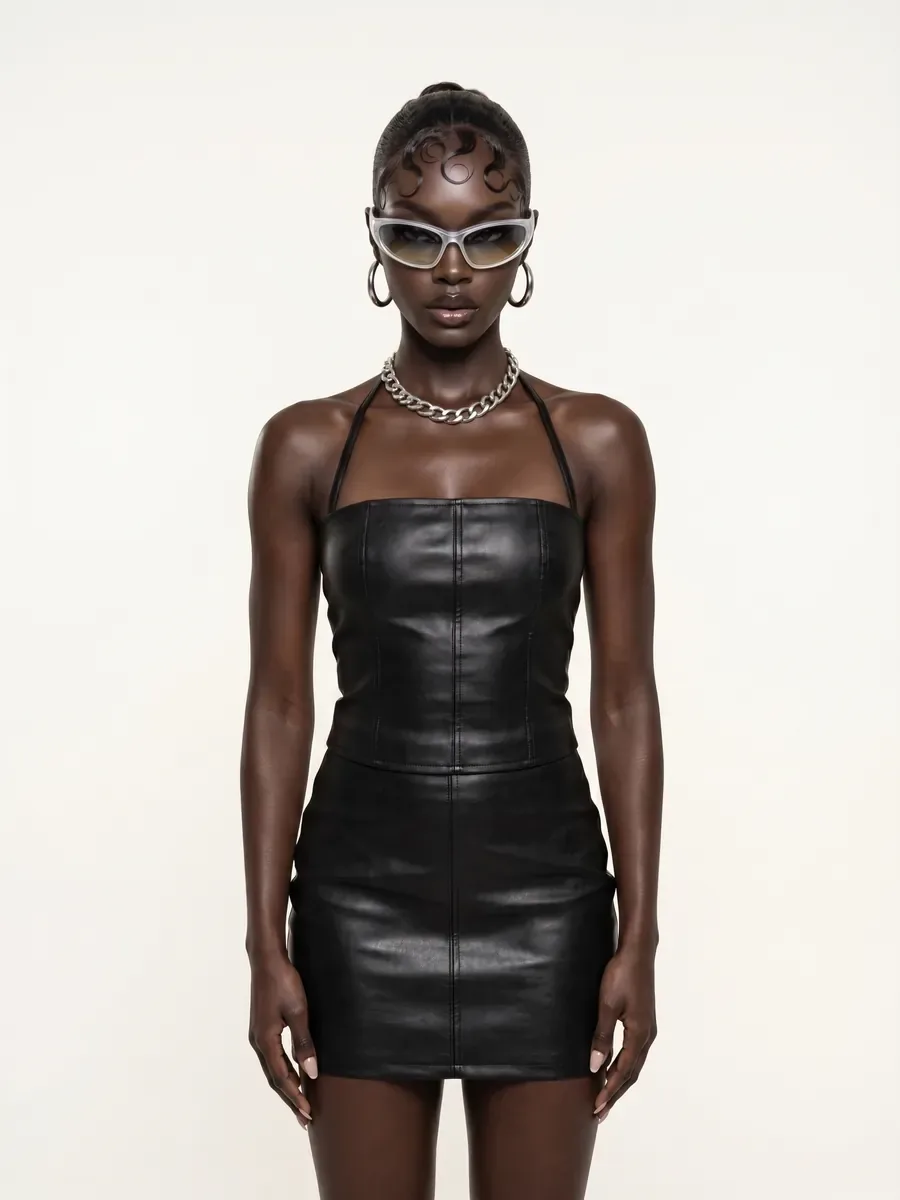
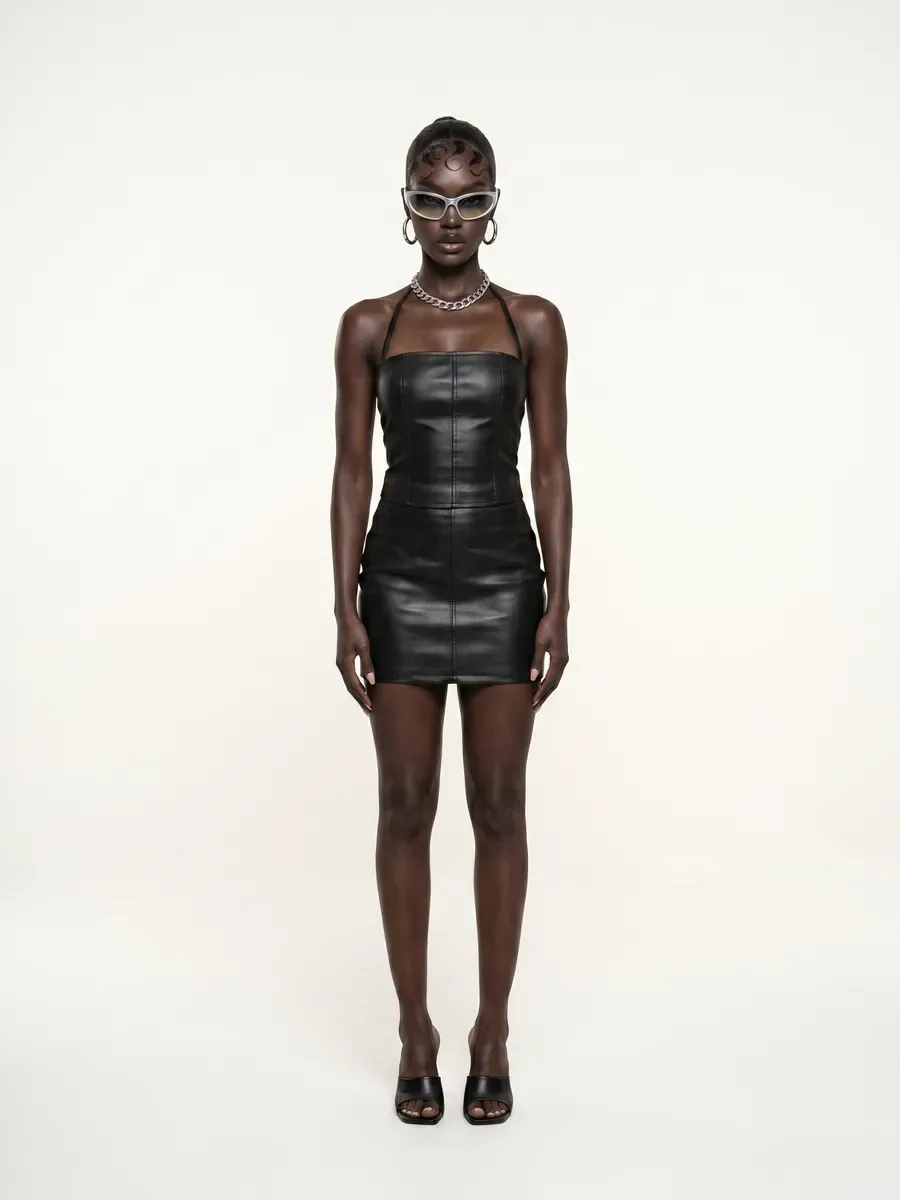
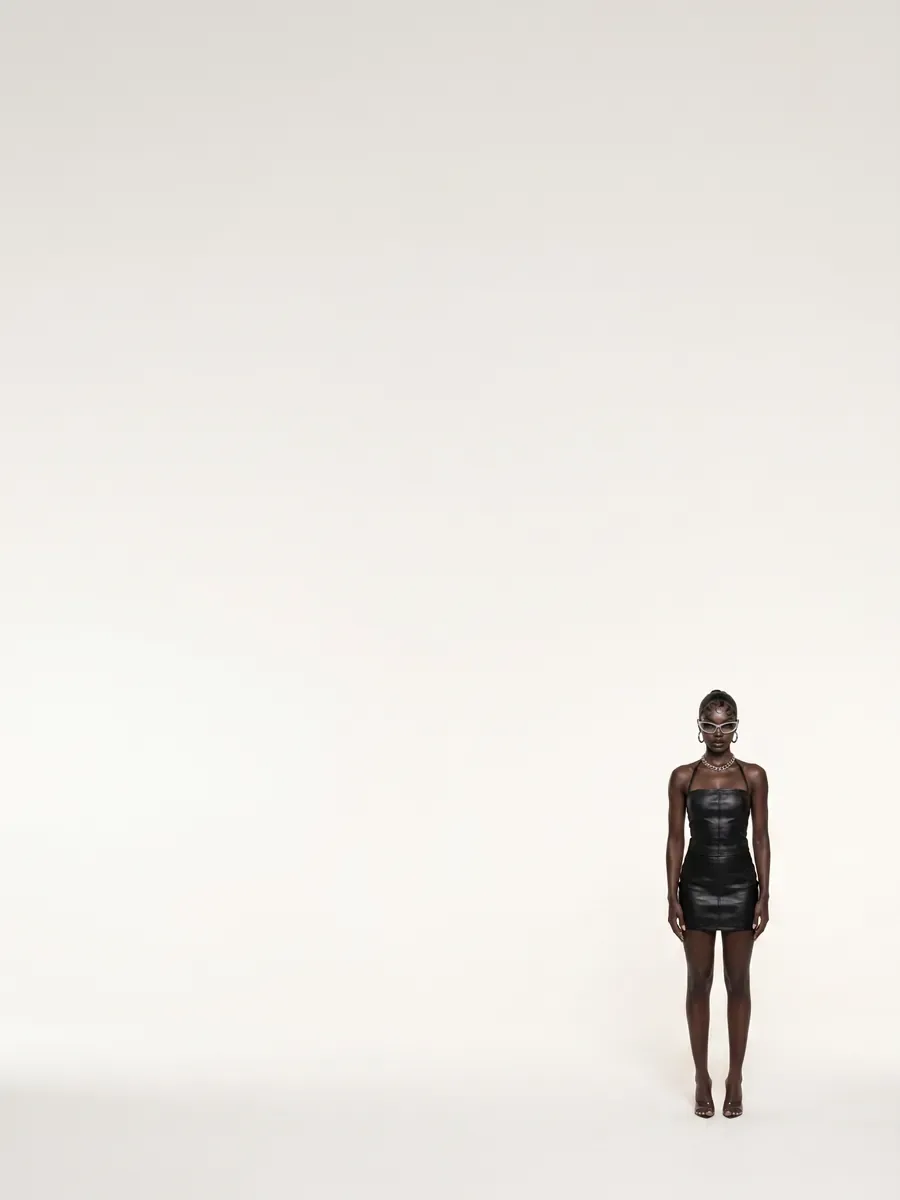
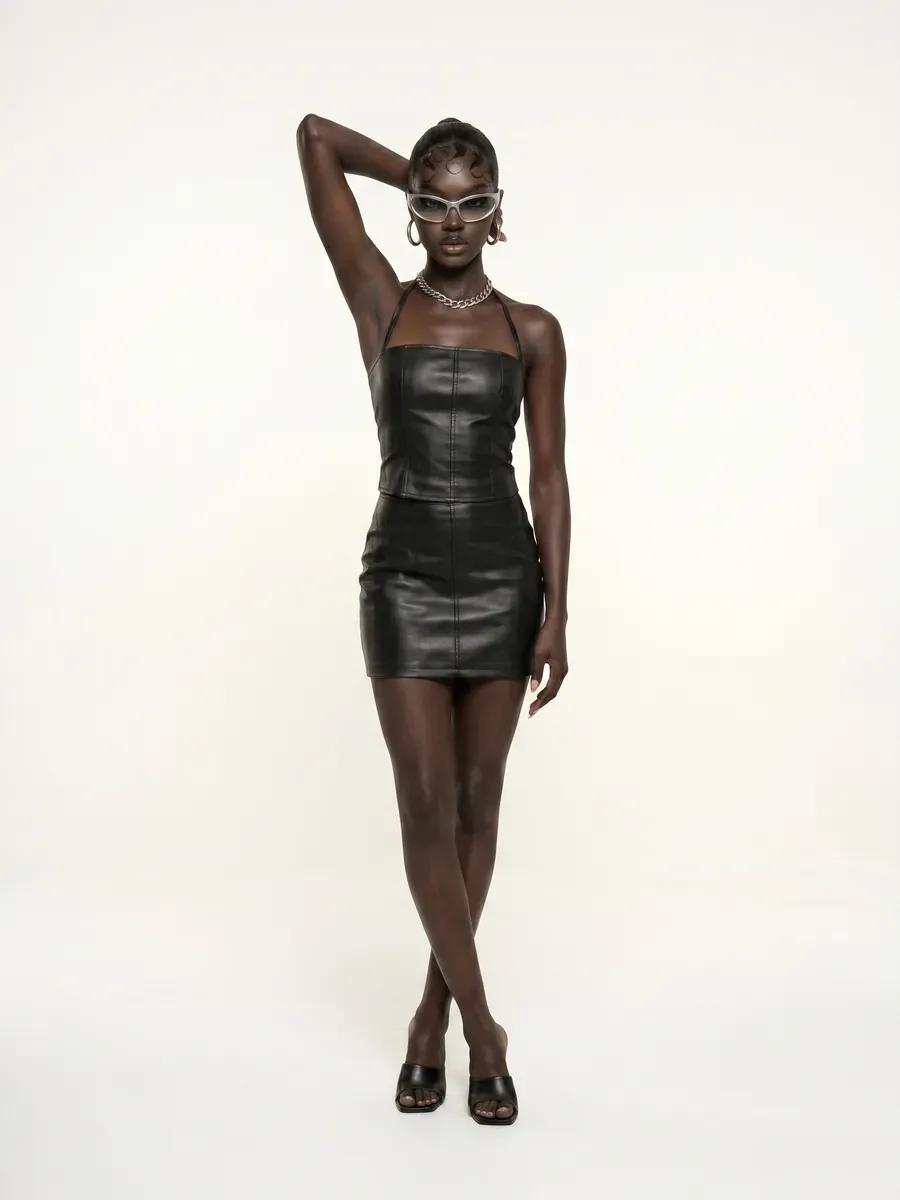
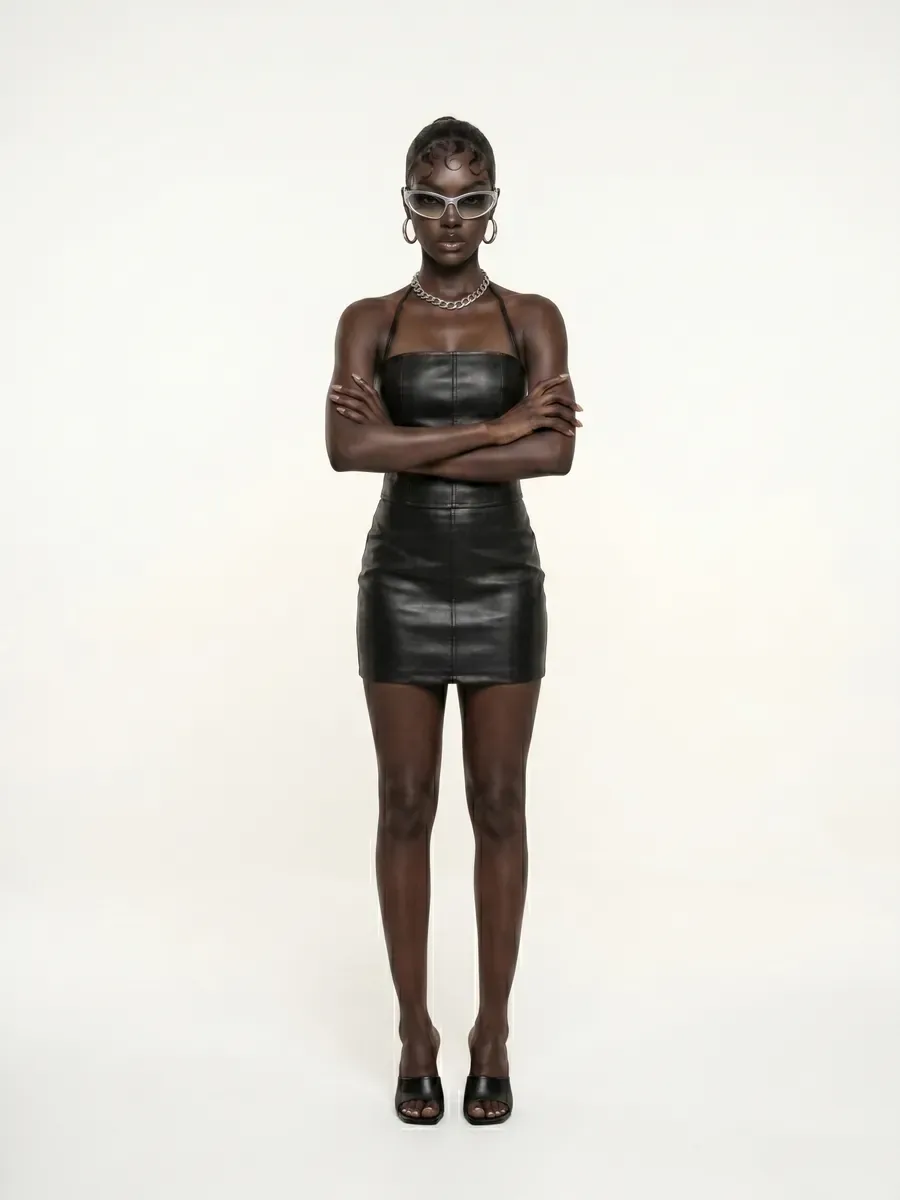
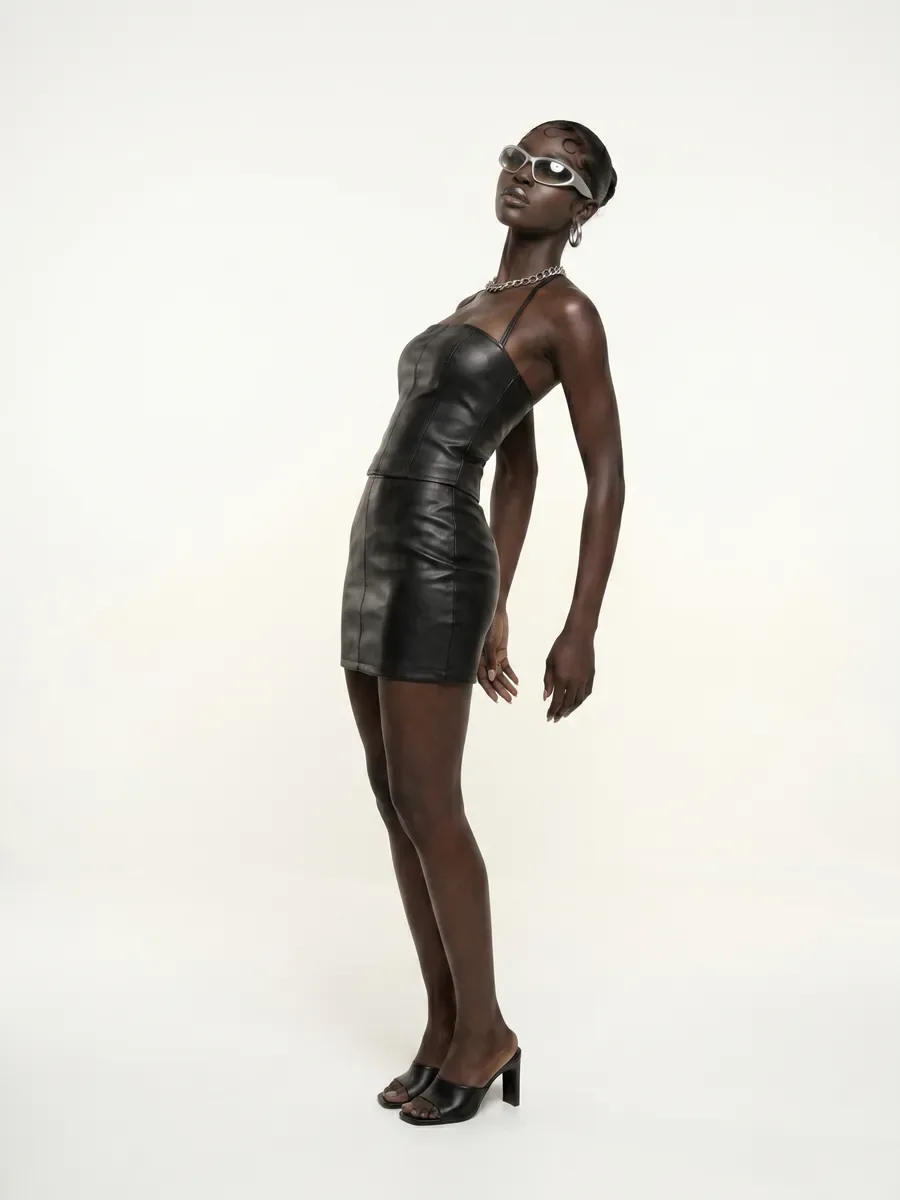
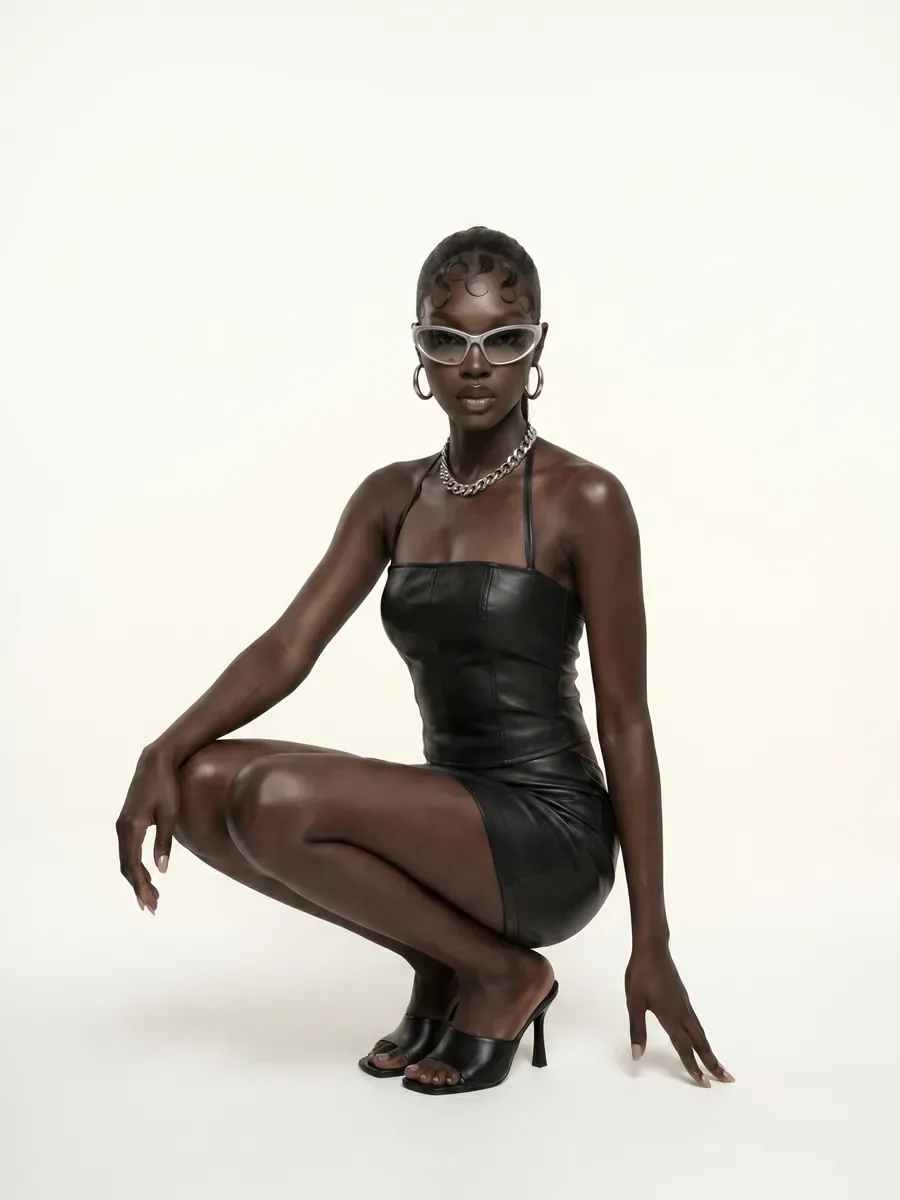
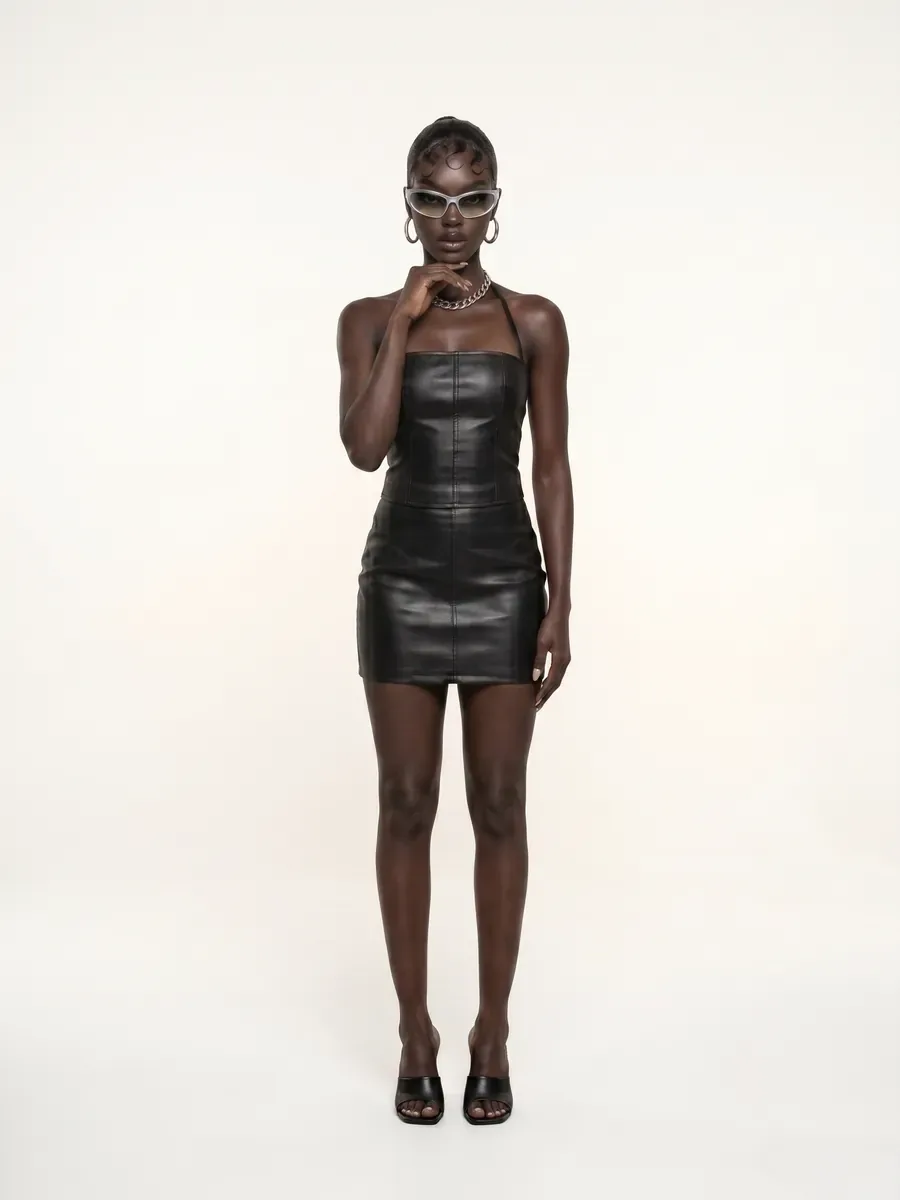
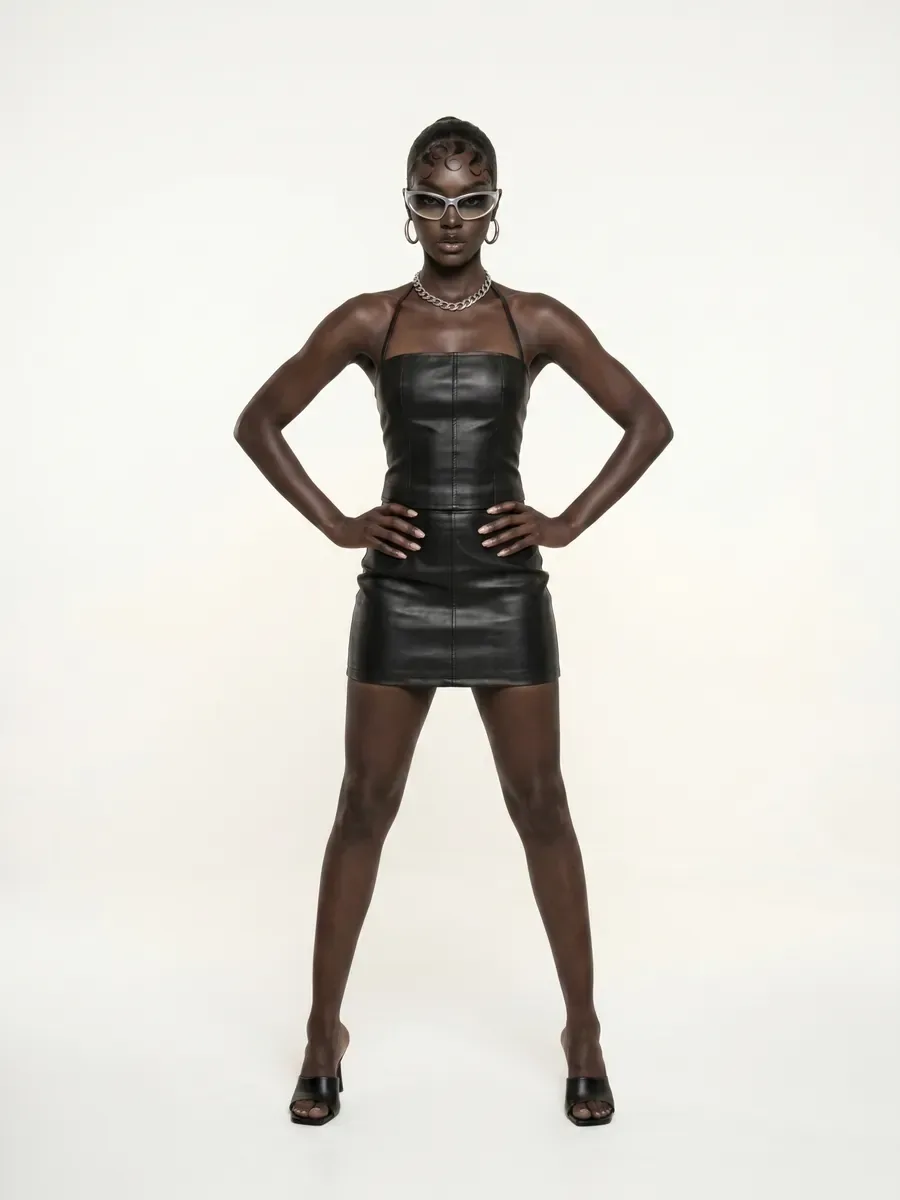
Begin with three shots: a wide view to establish the setting, a medium shot for the subject and a close detail. Keep the references and visual direction shared; change the framing on each shot.
What to Look For
Compare the subject, clothing and setting across the three results before adding more shots. Refine the weakest shot individually.
Planning work for a brand or client? Check commercial-use terms and the plan that covers your needs before you begin.
How It Works
- 01
Start or reopen a named shoot and add shared reference material.
- 02
Lay out shots with framing, angle, pose or custom direction; refine individual references and prompts.
- 03
Generate image shots, or switch to Video and set start and end frames, model settings and camera moves.
- 04
Review results on the board, retry or regenerate individual shots, and download or revisit the shoot.
Inputs & Creative Controls
What You Bring
- Shared image references
- Additional per-shot references
- Framing, angle or pose presets, or custom prompts
- Generated or selected start frames; optional end frames on supported video models
- Starting images from a concept or sent from another tool
What You Direct
- Image / Video board modes
- Framing, Angle, Pose and Custom shot picker
- Add, select, duplicate setup and delete shots
- Shared settings with per-shot reference/prompt overrides
- Video model, duration, resolution, aspect, audio where supported
- Per-shot camera movement and video prompt
- Named shoots and saved custom angles and moves
Three Ways to Put It to Work
- 01
Build a portrait story from a wide establishing image, a medium portrait and a close detail while retaining shared reference direction.
- 02
Explore eye-level, low-angle and profile treatments of one campaign brief without repeatedly rebuilding its shared setup.
- 03
Turn approved still frames into several short clips, varying camera direction or motion per shot for later editorial assembly.
What to Know Before You Start
- A board holds up to 24 shots. Some pickers allow fewer selections at once.
- Shoot Video lists only models that accept a first frame; references and end frames depend on the model.
- Some models take either frames or references, not both; Studio turns off the option you can’t combine.
- Shared references support continuity of direction, not an exact identity or physical camera guarantee.
- Shoot doesn’t edit clips into a timeline or mix audio; assemble the final film in your editor.
- A run needs enough credits, a valid source and access to the selected model.
Studio access, sign-in and credits may be required. Review the settings and the credit estimate before you generate.
A few useful answers.
Does Shoot deliver an edited film?
Shoot produces individual images or clips. Review and download the results, then assemble a finished sequence in your editing workflow.
How do I keep a session coherent?
Use shared references and a consistent brief, then vary one decision per shot. References guide the result; inspect subject and clothing details across every output.
Bring your direction into Studio.
A shared brief and optional image references. Review the available settings and the credit estimate before you generate.
About This Guide
Based on the controls and workflows in AIFACECRAFT Studio, updated . The use cases show practical ways to work with them. Available settings depend on your account and plan; Studio always shows the options you can use.
Read the Shoot Documentation