 AIFACECRAFT

Start with one clear decision.
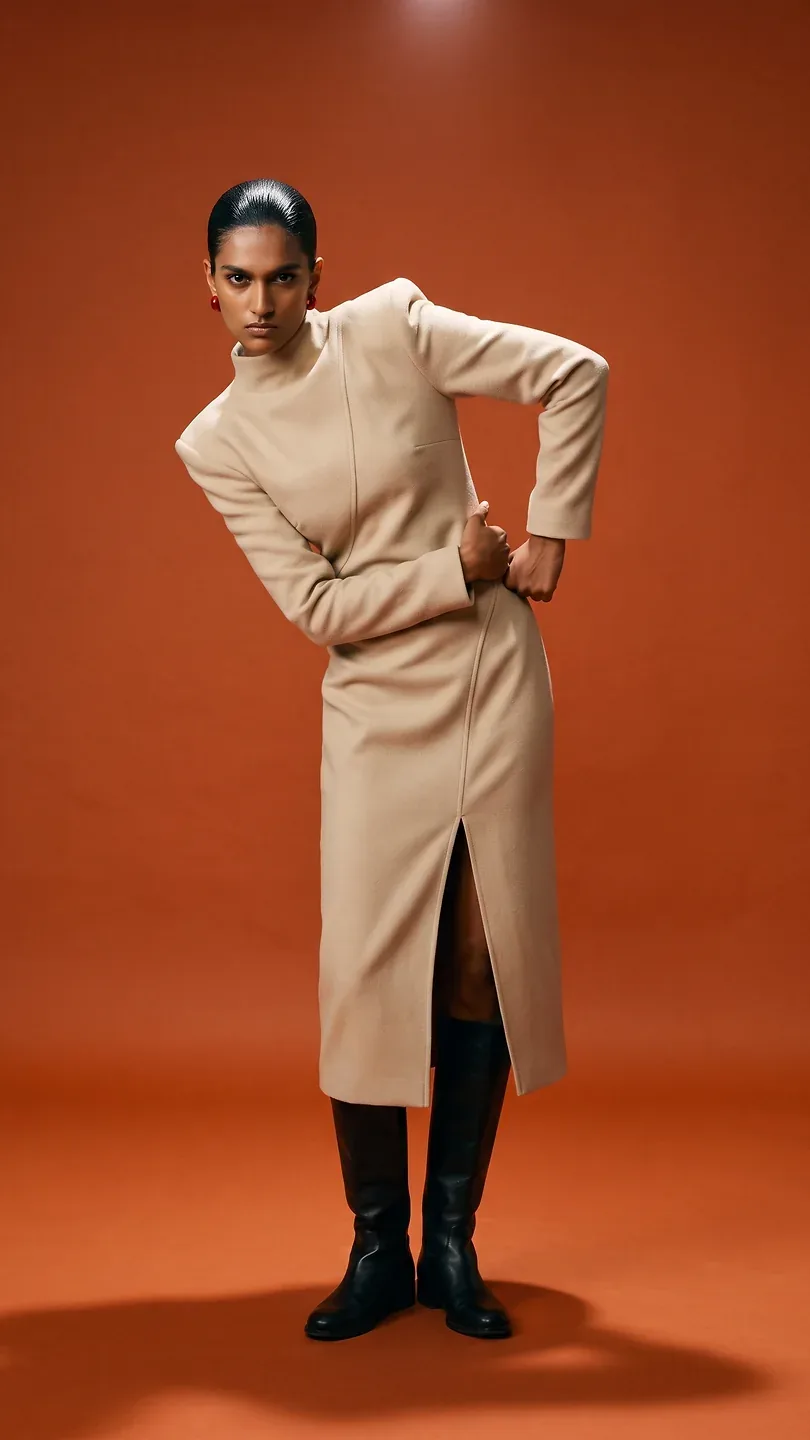
Choose one cast member and a single look. Start with a front-facing pose and a three-quarter pose in the same scene. Review those frames before exploring a different setting.
What to Look For
Compare seams, closures, patterns, accessory placement and body proportions against the garment reference. Reject attractive results that misrepresent the clothing.
Planning work for a brand or client? Check commercial-use terms and the plan that covers your needs before you begin.

How It Works
- 01
Open or name a campaign; choose the cast member or upload a model.
- 02
Assemble the look, then select framing, poses and scene.
- 03
Set quality, aspect and variations; review the displayed cost and generate.
- 04
Review grouped pose results, recreate or download them, or transfer an approved frame to Shoot/Video.
Inputs & Creative Controls
What You Bring
- Catalogue cast member or uploaded model photograph
- Garment/accessory library items or uploads
- Separate-piece or one-piece outfit
- Pose selections and scene
What You Direct
- Cast selection, including your own models
- Garment and accessory slots for up to 8 pieces
- Full-body, three-quarter, waist-up or close-up framing
- Fashion and accessory pose selections
- Scene selection
- Variations, quality tier and aspect ratio
- Named campaigns, restorable setups and actions for each result
Three Ways to Put It to Work
- 01
Prepare a multi-pose lookbook around one outfit and cast member.
- 02
Compare the same garment direction in a studio and a location scene while holding casting and pose stable.
- 03
Create accessory-focused compositions with tighter framing, then develop approved results into campaign shots or motion.
What to Know Before You Start
- A run requires a model, 1–8 look pieces, at least one pose and a scene.
- Each run creates up to 18 images (poses × variations).
- Some framing and accessory pose combinations aren’t available; quality options depend on your plan.
- Generated images don’t show physical fit or sizing, and fabric detail can differ from the original.
- Check the cast member and garment details in every result.
Studio access, sign-in and credits may be required. Review the settings and the credit estimate before you generate.
A few useful answers.
Can I use this to check garment fit?
No. Wardrobe creates clothing imagery, not a physical fitting or sizing simulation. Assess fit using the actual garment and measurements.
What should I keep consistent in a lookbook?
Hold the cast member, outfit and scene steady while changing poses. Compare garment details in every result; a coherent style does not guarantee exact reproduction.
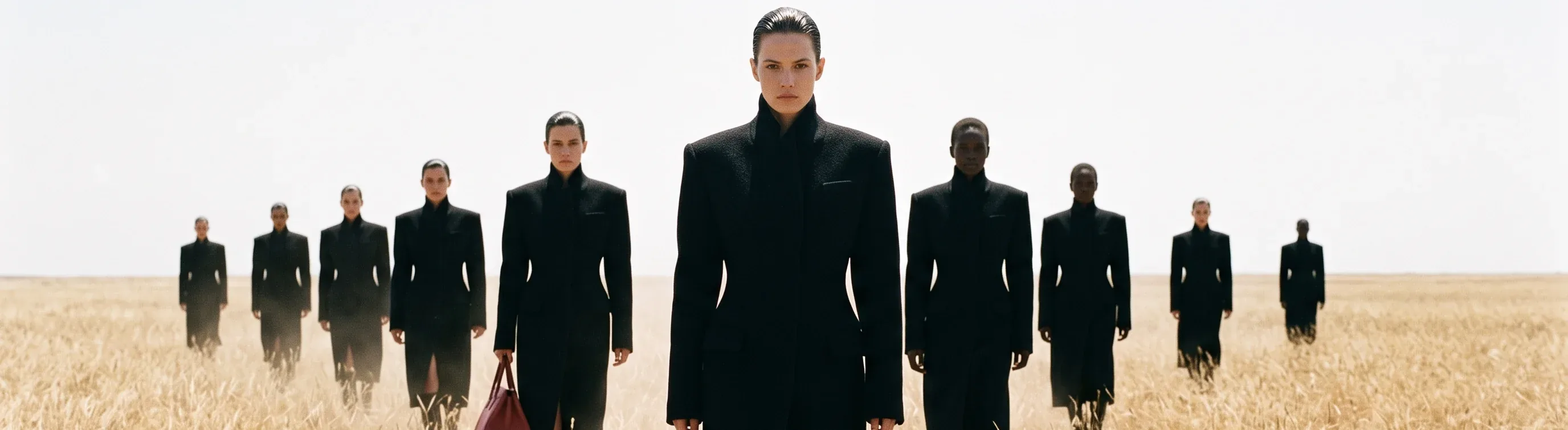
Bring your direction into Studio.
A cast member, garments, poses and a scene. Review the available settings and the credit estimate before you generate.
About This Guide
Based on the controls and workflows in AIFACECRAFT Studio, updated . The use cases show practical ways to work with them. Available settings depend on your account and plan; Studio always shows the options you can use.
Read the Virtual Wardrobe Documentation