 AIFACECRAFT
One model. Different ways in.
Your starting material matters. Choose the workflow that matches what you have and what you want to change.
01Text to Video
Start with a written shot: a subject, an action, a setting and a camera move.
02Image to Video
Use a starting frame to establish composition, then describe the movement.
03Reference-Led Generation
Guide a new clip with reference material. Treat references as direction, not a guaranteed frame-for-frame copy.
04Edit a Source Clip
Describe what should change in an existing clip. Review what stayed consistent as carefully as what changed.
05Extend a Clip
Continue a sequence with a supported extension workflow. Check the join, pacing and continuity.
This workflow overview describes published ByteDance capabilities. [1] [2] Modes are not interchangeable. Available modes, settings and limits in AIFACECRAFT may differ; check the Video panel before generating.
What you can set in the Video panel.
Checked in Studio on . Options can depend on your plan and may change; the panel in Studio is the final word.
Seedance 2.5
- Start From
- TextFirst FrameLast FrameImage ReferencesVideo ReferenceEdit a ClipExtend a Clip
- Resolution
- 480p720p1080p
- Length
- 4 s5 s6 s8 s10 s15 s20 s30 s
- Aspect Ratio
- 16:99:161:14:33:421:9
- Sound
- Optional
- Frames
- First/last frames and reference inputs are separate modes. With a first frame, the aspect ratio follows the image.
- Edit
- Use a 4–30 s source clip. Duration and aspect ratio follow that clip; resolution remains selectable.
- Extend
- Choose one of the listed lengths. Aspect ratio follows the source clip; resolution remains selectable.
Give references a clear job.
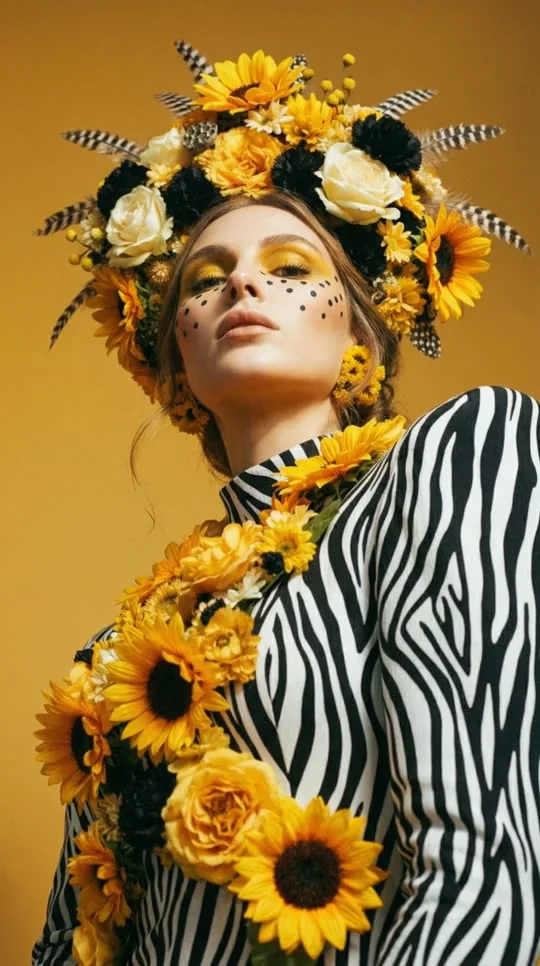
A reference can communicate a subject, a visual style or a camera movement. Tell the model which part matters.


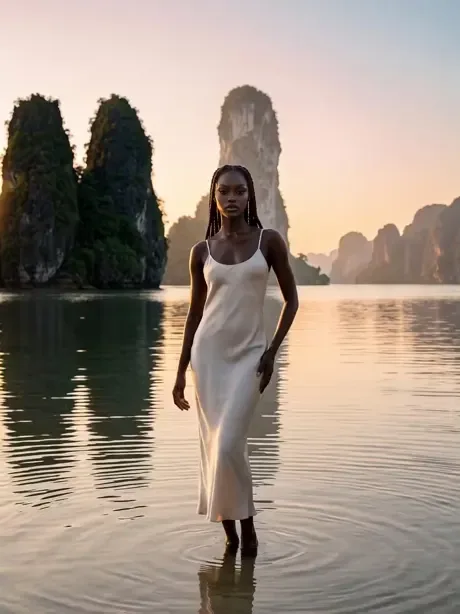
Reference is direction. Editing is a different task.
For a new clip, explain what to borrow from each reference. For an edit, identify the source video, the requested change and what should stay the same. Neither is a promise of perfect preservation.
Before You Start
- Choose clear, relevant inputs you have permission to use.
- Describe subject motion and camera motion separately.
- Check accepted formats and limits in the active workflow.
- Review faces, hands, sound and transitions in the result.
A Prompt to Start From
An example brief. Use it as a starting structure for your own scene.
A slow push-in through a sunlit glasshouse. One person walks between the plants, pauses and turns toward the window. Keep the camera movement gentle and the scene continuous.
One scene. One deliberate change.
Start from a Frame
Choose an image-led workflow when composition is already decided. Describe one subject action and one camera move. Keep the background direction simple so you can judge the motion.
Give Each Reference a Role
Name the subject, setting or movement that each permitted reference should guide. A style reference should not be mistaken for the person or product you want to preserve.
Edit with a Boundary
For a supported edit, state what should change and what should remain: “Change the background to a glasshouse; retain the subject’s action and the camera movement.”
Watch the full result before increasing complexity. Compare faces, hands, sound and the opening and closing frames.
A few useful answers.
Does this link select Seedance 2.5 for me?
No. It opens the Video section. Choose Seedance 2.5 if it is available in your model picker, then check the offered inputs, settings and credit estimate.
What should I try first?
Start with one subject, one action and a simple camera move. For an image-led clip, use a frame you have permission to upload and explain the movement you want. Review the result before adding more references or a longer sequence.
Are all Seedance 2.5 features available here?
Not necessarily. This guide separates ByteDance’s published capabilities from the controls offered in AIFACECRAFT. Use the active Video panel to choose your workflow.

Try your own direction in AIFACECRAFT.
Open Video in Studio and check whether Seedance 2.5 is available in your model picker. Review the available controls and estimated credits before you generate.
- Check the model picker. The entry link opens the Video section; it does not preselect a model.
- Match the mode to your task. Start a new clip, use reference material, or work from an existing clip when the mode is available.
- Begin with a small, focused test. Inspect the result before adding more subjects, shots or reference material.
Seedance 2.5 is part of the AIFACECRAFT Video model picker. The picker shows whether it is available to your account.
Know the limits.
Capabilities are not guarantees.
Complex movement, identity details and precise edits still need review. Reference inputs can be subject to content restrictions. Use only material you are permitted to upload.
Check the settings you actually see.
Published specifications can differ across services and change over time. This guide makes no universal resolution, cost or output-quality promise.
Keep Learning


Sources and Editorial Notes
Updated . ByteDance announced Seedance 2.5 on . This is a model guide, not launch news.