Grok Imagine 2.0
- Resolution
- 1K2K
- Aspect Ratio
- 9:162:33:41:14:33:216:9
- References
- Up to 3 images
- File Format
- JPEGPNG
 AIFACECRAFTOpen Studio
 Image Model Guide
Choose the frame before refining the scene.
Grok Imagine 2.0 is xAI’s Imagine Image 2.0, an image generation and editing model. Decide the shape of your image before refining the scene: the available aspect ratios are part of the creative choice, not an afterthought.
Guide by AIFACECRAFT · Updated
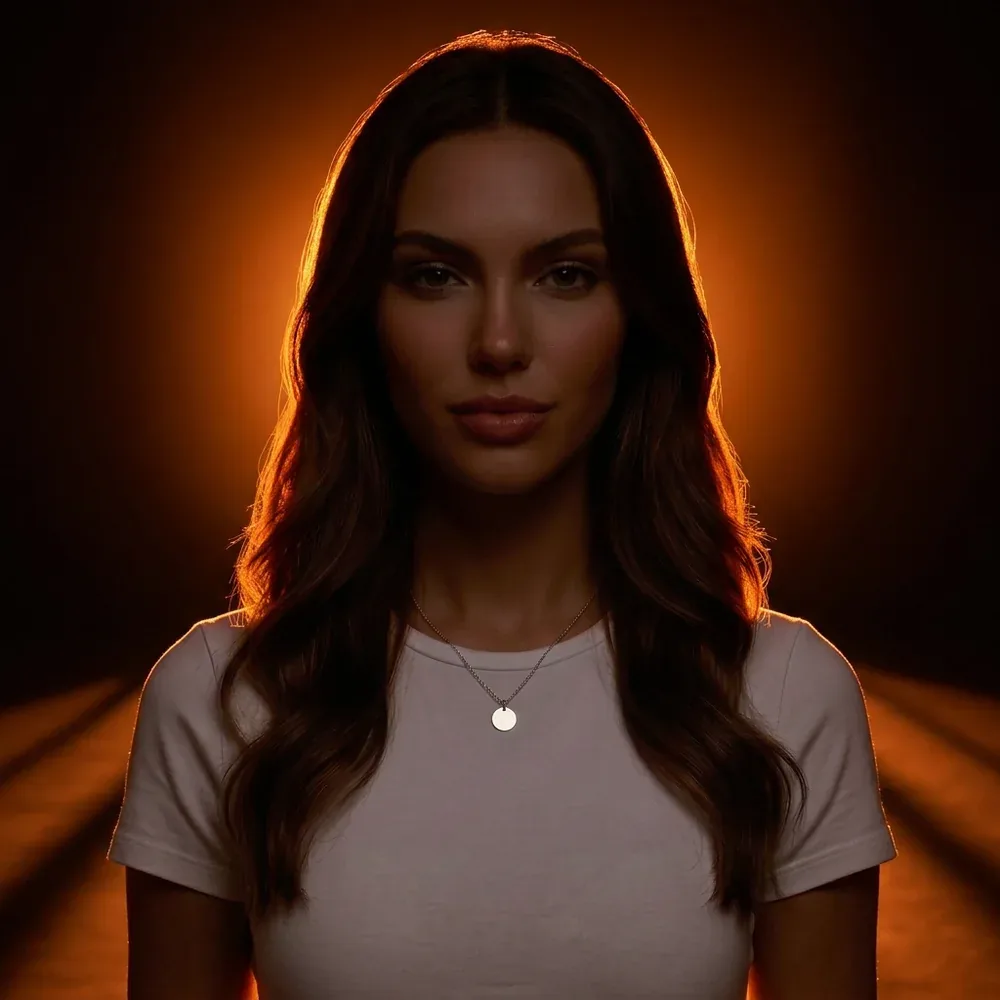
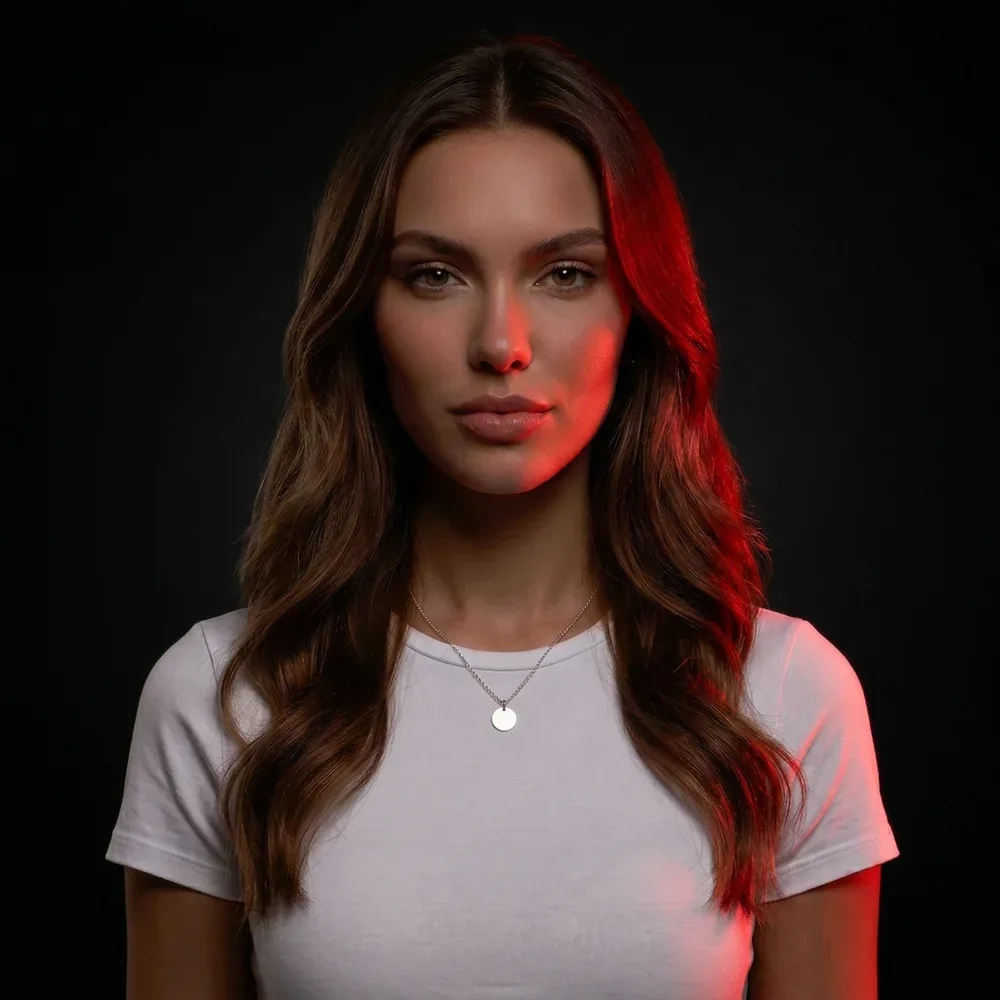
A vertical editorial still life with a single folded fabric form, directional afternoon light and a calm neutral wall. Keep the full subject inside the frame.
Checked in Studio on . Options can depend on your plan and may change; the panel in Studio is the final word.
Choose a supported aspect ratio first, then write a composition that makes sense in that frame. For a portrait layout, leave room around the subject rather than relying on a later crop to save the image.
In AIFACECRAFT, Grok Imagine 2.0 offers 1K and 2K and a narrower set of aspect ratios than some models: 4:5, 5:4 and 21:9 aren’t available. Choose from the listed ratios; custom dimensions aren’t offered.
Inspect the edges and subject proportions at your intended crop. Check any reference detail before preparing a final asset.
Available ratios differ by model. Choose a supported ratio or another model that offers the frame you need.
Inspect the edges and subject proportions at your intended crop. Check any reference detail before preparing a final asset.
Select the model if it is available in your account and review its inputs, settings and credit estimate. This link opens the section; it does not preselect a model.
Model details come from the developer’s documentation; settings were checked in AIFACECRAFT Studio. Example briefs are starting points for your own work. Artwork on this page comes from AIFACECRAFT collections.